Denticon Login: Sign-In Steps and Fixes for 2026
A Denticon login opens Planet DDS's cloud-based practice management software for dental teams. This guide covers the correct sign-in path, the two-stage login process, remote and...
Written by Mantas Petraitis
Read time: 6 min read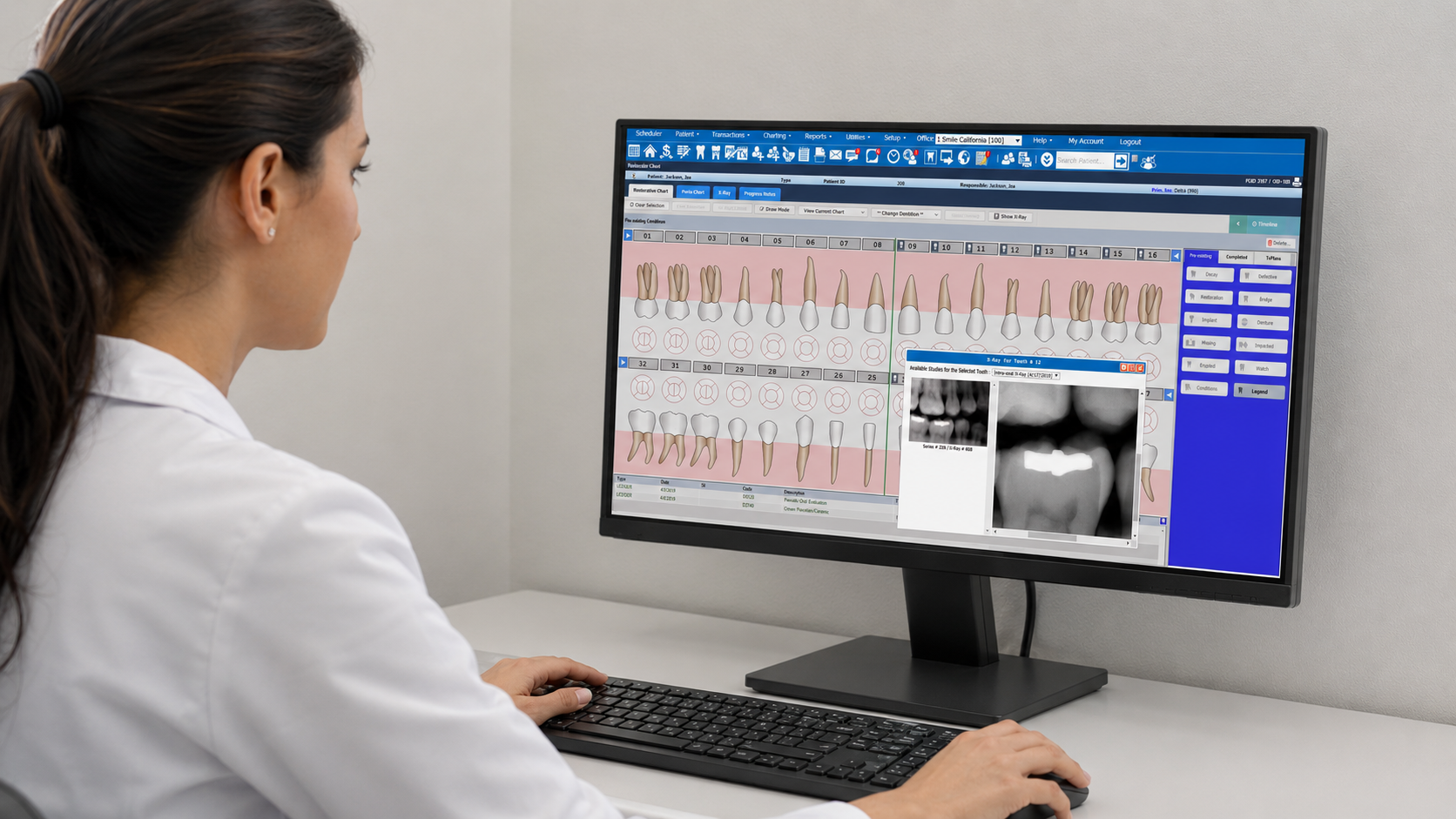
A Denticon login opens Planet DDS's cloud-based practice management software for dental teams. This guide covers the correct sign-in path, the two-stage login process, remote and X-ray access, and fixes for the errors that come up most often.
TL;DR
Start every Denticon login from the Denticon Login button on planetdds.com, not a bookmarked login page.
Denticon uses a two-stage login, username first, then password, and neither field is case-sensitive.
Only an office administrator can reset a user's password, not Denticon support, for HIPAA compliance.
Call (800) 861-5098 and dial 2 for login help if self-service steps do not fix the issue.
What Is Denticon and How Does the Denticon Login Work?
Denticon is Planet DDS's cloud-based dental practice management software, built for multi-location groups and DSOs but usable by solo practices too. Every Denticon login opens the same core system, though the tools a user sees depend on their assigned security group.
The platform runs on what Planet DDS calls the "Concept of One," a single patient record that providers across multiple office locations can access from the same browser window. After logging in, staff access scheduling, billing, charting, imaging, and reporting from one dashboard rather than separate desktop programs.
Because Denticon is cloud-based, there is no server to maintain at each office. Updates to fee schedules or insurance plans apply globally once, instead of requiring a manual update on every desktop copy of the software. Practices setting up a new location often evaluate a system like this as part of a broader new dental practice checklist. Software choice affects everything from IT infrastructure to compliance planning.
Denticon.com Login vs the Denticon Login Button, Getting to the Right Page
Denticon's own login page carries an unusual warning – do not bookmark it. This trips up a lot of people searching for a denticon.com login shortcut.
The official Denticon login page instructs users to always start a session from the Denticon Login button at the top of planetdds.com, rather than saving the login.denticon.com address directly. Denticon explains that each session should begin from that button, and that planetdds.com is the page worth bookmarking instead. A stale, directly bookmarked login page is a common reason a returning user lands on an error or an outdated screen.
How to Log In to Denticon, Step-by-Step
Denticon has used a two-stage login since October 2023, an update the company rolled out as an industry-standard security step and a foundation for future multi-factor authentication. The process below reflects that current flow.
Go to planetdds.com and click the Denticon Login button, or go directly to denticon.com/login
Enter your username on the first screen and click Continue
Enter your password on the second screen
Click Log In
Complete the security check if prompted, which appears after repeated attempts
Select your office location from the dropdown if your account has access to more than one
Neither the username nor password is case-sensitive, according to Planet DDS's own login documentation. A rejected login almost always means a genuine mismatch between what was typed and what is on file, not a capitalization issue. Practices with single sign-on enabled by their Denticon admin can also continue with Microsoft instead of the standard username and password screen.
Denticon Remote Login for Work-From-Home and Multi-Location Access
Denticon's cloud architecture means remote access does not require a VPN or a remote desktop connection back to an office computer. Staff log in the same way from any location with an internet connection.
One setting trips up remote users more than any other. Denticon supports IP address restrictions, which limit account access to approved networks only. A staff member working from home can be blocked entirely if this setting is active on their account. Planet DDS's guidance on working remotely specifically flags turning off IP restrictions as a required step before remote login will succeed.
Users with access to more than one office land on their assigned "Home Office" by default after logging in. A dropdown menu lets them switch locations without logging out and back in.
Denticon Staging Login and Test Environments
Some searches for a Denticon staging login come from confusion between a live production account and a separate test environment. No standard, publicly documented staging login exists for typical Denticon customers.
Two things likely explain the search. Practices setting up single sign-on with Microsoft Entra ID go through a distinct consent and mapping screen during setup. This can look like a separate login system to someone unfamiliar with it. Others may be thinking of Denticon's backup server, a real fallback covered in the troubleshooting section below, used only when the main system is unavailable. Practices that specifically need a sandbox environment for testing a major configuration change should contact their Denticon account representative or Planet DDS support directly. This is not a self-service option.
Denticon X-Ray and Imaging Access After Login
A Denticon login also opens X-ray and imaging tools built into the same patient record, rather than a separate program. This is distinct from chairside digital impressions captured with an intraoral scanner, though both feed into the same patient chart once uploaded.
Denticon connects with popular X-ray machines and intraoral cameras, storing images directly in each patient's chart. This covers standard 2D radiography, though practices running CBCT scanning for implant or orthodontic cases typically manage that imaging through a dedicated 3D viewer alongside Denticon. Planet DDS's own imaging product, Apteryx XVWeb, integrates directly into Denticon. It uses an open architecture that works with sensors from multiple manufacturers rather than locking a practice into one hardware brand. Images captured in the office sync to the cloud through Dentiray Web. Several practices report this lets them view X-rays remotely on a phone or laptop without remoting into an office computer at all.
This matters for practices building a dental treatment plan around current imaging. The provider reviewing a case does not need to be sitting at the machine that captured it. Practices scanning with a 3Shape TRIOS or another open-platform scanner can route that data into the same patient record once the files are uploaded.
Troubleshooting Common Denticon Login Issues
Most Denticon login problems trace back to a short list of causes, and each one has a specific, documented fix.
Incorrect Username or Password
A rejected login usually points to a genuine mismatch, not a Caps Lock issue, since neither field is case-sensitive. Work through these steps in order.
Confirm the username matches what is on file, since a personal email address or an old username will not work
Retype the password carefully instead of relying on autofill, which can carry over an outdated saved password
Click Continue again to resubmit the corrected username
Ask an office administrator to reset the password inside Denticon if the login still fails, since Denticon support cannot do this directly for HIPAA compliance reasons
Forgot Your Username
The username is required before any password recovery can happen, so this comes first if both are missing.
Check the browser's saved password manager, since most browsers store the username alongside the password
Ask an office administrator to look up the username through Setup, then Security, then Users
Click I cannot access my account on the password entry screen once the username is confirmed
Log in with the confirmed username and current password
Forgot Your Password
Password resets go through an office administrator rather than a self-service email in most cases.
Contact the office administrator, since they hold password reset permissions for every user in the account
Ask the administrator to reset the password through Setup, then Security, then Users
If self-service reset is enabled for the practice, check the spam folder for the reset email before assuming it never arrived
Log back in at denticon.com/login with the new password
Security Check Appearing on Login
A security verification screen appears after three or more unsuccessful login attempts, and it is not a sign the account is locked.
Complete the security check exactly as shown on screen
Confirm the username and password are both correct before submitting again
Click Continue to proceed once the check clears
Contact an office administrator for a password reset if the check keeps reappearing
Account Shows as Inactive
This happens when an administrator has marked a user inactive, often after an employee leaves the practice.
Contact an office administrator directly, since reactivation requires administrator access, not a support ticket
Ask the administrator to check the account status under Setup, then Security, then Users
Have the administrator reactivate the account from that screen
Attempt the login again once reactivation is confirmed
Pop-Ups Blocked During the Two-Stage Login
Blocked pop-ups can interrupt the two-stage login screen and add extra clicks every session.
Open the browser's privacy or security settings
Find the pop-up or redirect permissions section
Add planetdds.com and denticon.com to the allowed or trusted sites list
Reload the login page and sign in again
Can't Log In Remotely
IP address restrictions block login attempts from outside approved networks by design, and this is the most common cause of a remote login failure.
Contact an office administrator about IP address restrictions on the account
Ask the administrator to turn off or adjust the restriction for remote access
Confirm the change was saved on the account
Attempt the login again from the remote location
Denticon Down or Unavailable
A system-wide outage calls for the backup server rather than repeated login attempts on the main site.
Go to the Denticon backup server login
Log in with the same credentials used for the main system
Print routing slips or appointment confirmation lists as needed for patients already in the office
Return to the standard login page once Denticon service is restored
Denticon Customer Support and Login Help
Self-service steps resolve most login issues, but some situations need direct support.
Office administrators needing login help can call (800) 861-5098 and dial 2 for support. The Denticon Help Portal is available after logging in, under Help, then Help Portal, and includes reference articles and screen-by-screen videos covering common tasks. Front desk staff and dental assistants are often the first to notice a login issue during a busy morning. Knowing where the Help Portal lives saves a call to support for routine questions. When submitting a support ticket, including the office location, a phone extension, and a clear description of the issue speeds up the response. This matters most for multi-location organizations, where the support team needs to know exactly where the problem is occurring.
Denticon Login vs Other Dental Practice Management Logins
Denticon sits among several cloud and desktop practice management platforms, each with a different login and access model.
Feature | Denticon | Dentrix | Open Dental |
|---|---|---|---|
Deployment | Cloud-based | Primarily on-premise | On-premise or self-hosted |
Multi-location support | Built for DSOs and groups | Available, less native | Available |
Native imaging integration | Yes, Apteryx XVWeb | Third-party integrations | Third-party integrations |
SSO support | Yes, Microsoft Entra ID | Varies by setup | Varies by setup |
Denticon's cloud-first design suits multi-location groups that need centralized reporting and a single patient record across offices. Practices comparing platforms in more depth can review this breakdown of Dentrix features, setup, and login troubleshooting. This separate walkthrough of the iTero login and scanner portal covers a connected imaging workflow for practices weighing that option alongside their practice management system.
Bottom Line
A Denticon login always starts from the Denticon Login button on planetdds.com, not a bookmarked login page. Most access problems trace back to a username or password mismatch that only an office administrator can fix, since Denticon support cannot reset passwords directly. Remote access and X-ray viewing both run through the same cloud login, with IP restrictions being the most common thing blocking remote staff. Denticon's support line and Help Portal cover anything self-service troubleshooting does not resolve.
Frequently Asked Questions
What is the Denticon login page?
The Denticon login page is reached through the Denticon Login button at the top of planetdds.com, or directly at denticon.com/login. Denticon recommends starting each session from planetdds.com rather than a saved bookmark.
Why shouldn't I bookmark the Denticon login page directly?
Denticon's own login screen instructs users not to bookmark it, since each session should be initiated from the Denticon Login button on planetdds.com. A directly bookmarked page can lead to an outdated or broken screen over time.
How do I reset my Denticon password?
An office administrator resets passwords in Denticon, since Denticon support does not handle this directly for HIPAA compliance. Administrators can manage this through Setup, then Security, then Users.
What if I forgot my Denticon username?
An office administrator can look up any username through Setup, then Security, then Users. A browser's saved password manager may also have the username stored alongside the password.
Can I log in to Denticon remotely?
Yes, Denticon is cloud-based and does not require a VPN for remote access. IP address restrictions, if enabled on the account, need to be turned off first for remote login to succeed.