Dentrix Ascend Login: How To Sign In And Fix Access Errors
A Dentrix Ascend login opens Henry Schein One's cloud practice management platform, no local server is involved. This guide covers the sign-in steps, what those "Live" numbers...
Written by Mantas Petraitis
Read time: 7 min read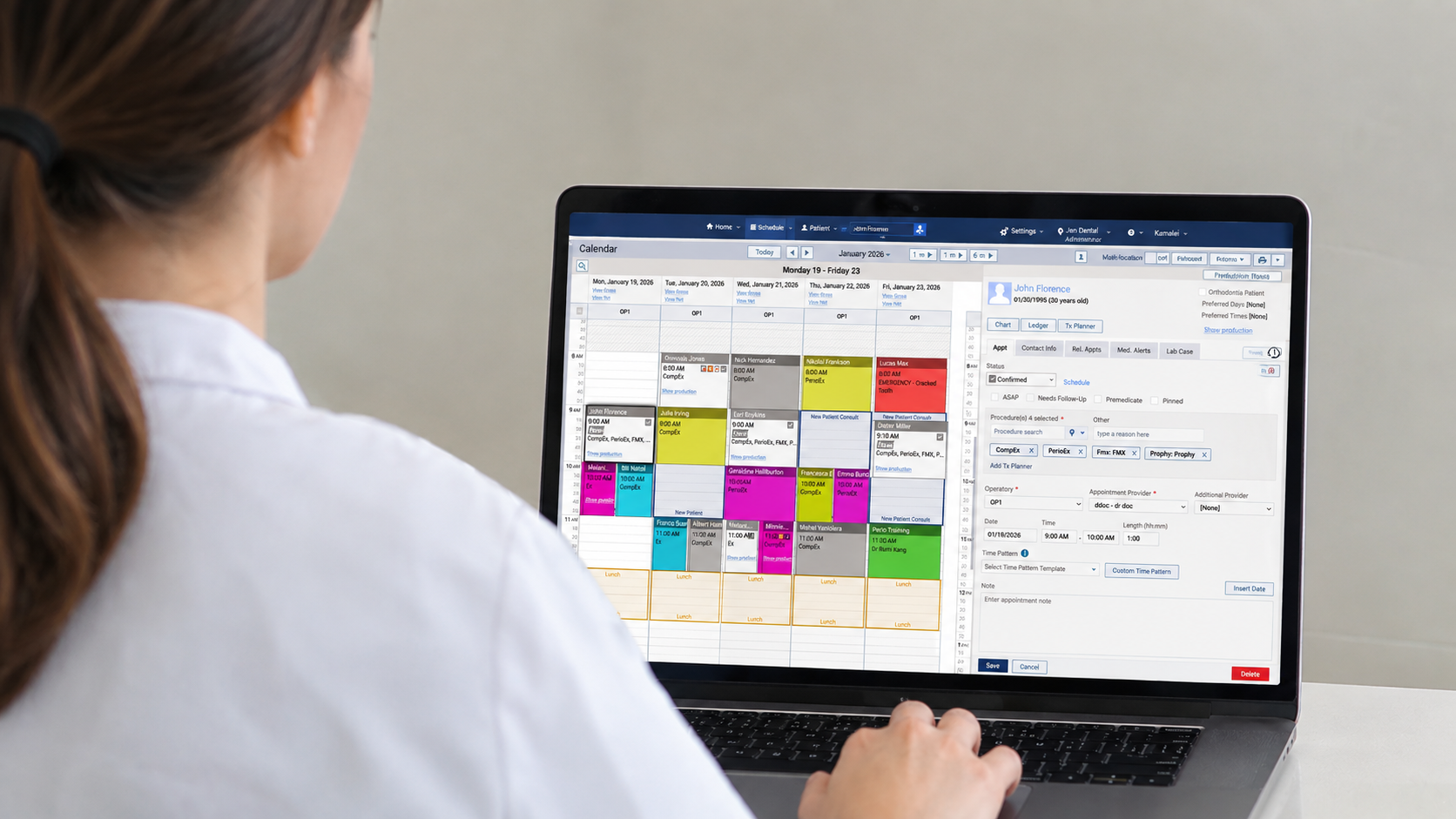
A Dentrix Ascend login opens Henry Schein One's cloud practice management platform, no local server is involved. This guide covers the sign-in steps, what those "Live" numbers mean, account setup, password resets, and the errors that show up most often.
TL;DR
Log in at your organization's Dentrix Ascend web address using your organization ID, username, and password.
The number in a login link, like Live 7 or Live 19, is just a server name. It's not a different product or a warning sign.
Most login problems clear up with a password reset or a quick check of the organization ID.
Call 855-232-9493 or email support@dentrixascend.com when self-service steps don't fix it.
What Is Dentrix Ascend And How Does The Login Work?
Dentrix Ascend is a browser-based practice management system built by Henry Schein One. It runs in Google Chrome, so there's no server sitting in a back office and no software to install on each workstation.
Every login opens the same cloud dashboard, whether the person signing in is a dentist, a front-desk coordinator, or a billing lead. What each person sees inside that dashboard depends on their assigned role, not on how they logged in. For a broader look at how Ascend compares with the traditional, server-based version of Dentrix, the complete Dentrix guide covers both platforms side by side. It includes pricing and feature differences.
Understanding The Dentrix Ascend Live Server System
A lot of confusion around the Dentrix Ascend login traces back to one detail. The word "Live," followed by a number, shows up in a web address or in an email sender name. It looks like it could be a version number or a separate product. It isn't.
Henry Schein One hosts Dentrix Ascend across several server clusters, and each one carries a name like live2.dentrixascend.com, live7.dentrixascend.com, or live19.dentrixascend.com. When an organization signs up, Henry Schein One assigns it to one of these clusters. That assignment is what shows up in the browser's address bar after login. It's also why an activation or notification email might arrive from an address like live5@dentrixascend.com rather than a generic support address.
The number itself carries no meaning beyond which cluster hosts that organization's data. Live 7 is not newer or better than Live 2. Live 19 is not a premium tier. A dental office on Live 3 and a dental office on Live 12 are running the identical Dentrix Ascend platform, just on different infrastructure behind the scenes.
This matters most for someone who was handed a login link by a colleague, an old email, or a bookmark, and now sees a different number than they expected. If a practice's assigned cluster changes for infrastructure reasons, the number in future links will simply update. Old bookmarks should be replaced with the current one rather than treated as broken. The safest habit is to bookmark the exact web address that appears in the browser immediately after a successful login, rather than trying to guess or remember the number.
How Do I Log In To Dentrix Ascend?
The sign-in process itself is short. It takes three pieces of information and, on some accounts, one extra verification step.
Go to your organization's Dentrix Ascend web address, the one that matches your assigned Live server
Enter your organization ID exactly as provided, spaces are stripped automatically if you type any
Enter your username, which is not case-sensitive, and click Continue
Enter your password on the next screen, this field is case-sensitive
Enter a one-time code if prompted for multi-factor authentication
Click Log in to reach the dashboard
One detail trips people up here: even if Chrome has the password saved, it won't auto-fill on this second screen. That's expected behavior, not a sign that something is broken.
How Do I Set Up My Dentrix Ascend Account For The First Time?
A brand-new Dentrix Ascend account doesn't start from a public sign-up page. It starts from an email, and setup takes just a few minutes.
Wait for the automated activation email Henry Schein One sends once an administrator creates your user account
Open the link inside that email
Set a password
Confirm a few account details to complete setup
There's no separate registration form to hunt down. Whole-practice onboarding is a bigger project than a single login. It usually involves data conversion from a previous system, staff training, and a trial environment to practice in before going live. Practices also connecting patient communication tools during that setup, such as the Weave login for text and phone integration, tend to sequence that work alongside the core Ascend rollout rather than after it.
If your practice is switching to cloud-based dental practice management software for the first time, that transition deserves its own planning, separate from just getting one person logged in. A new dental practice checklist is a useful starting point for sequencing that work.
How Do I Reset A Forgotten Dentrix Ascend Password?
A forgotten password doesn't require a call to support in most cases. It's a self-service fix built into the login screen itself.
Click Forgot Password on the login page
Confirm your organization ID
Enter your username
Check your email for reset instructions from Henry Schein One, checking spam or junk if it doesn't arrive within a few minutes
Complete the reset in one sitting, since the link inside expires after a period of time
Why Does Dentrix Ascend Ask For A Multi-Factor Authentication Code?
Dentrix Ascend supports multi-factor authentication, or MFA, on accounts where enhanced security has been turned on. For most people, this adds almost nothing to daily logins.
MFA typically only triggers when something about the login looks unusual: a new device, a new location, or a VPN connection that keeps switching endpoints. Logging in from the same front-desk computer every morning rarely prompts a code request at all. When it does trigger, follow these steps.
Check your email or phone for a one-time code
Enter the code on the login screen to complete sign-in
Update your mobile number or email in account settings if a code stops arriving
Contact your organization's Dentrix Ascend administrator if the account was marked ineligible for MFA and disabled
An account marked ineligible for MFA is an account-level setting Henry Schein One support can't override directly. This exists to protect patient health information and keep access aligned with HIPAA expectations. It's the same reasoning behind most password and account controls in dental software.
Dentrix Ascend Login On Mobile And Other Devices
Dentrix Ascend runs the same way on a phone, tablet, or laptop as it does on a desktop. The whole platform lives in the browser rather than in installed software.
The same organization ID, username, and password work across every device. There's no separate mobile app to download and no reduced feature set on a tablet screen. A dentist checking the schedule from an iPad at a satellite location signs in exactly the way they would at the main office computer, a similar setup to how the DS Core login works for practices running Dentsply Sirona's cloud platform alongside Ascend.
Troubleshooting Common Dentrix Ascend Login Errors
Most login problems fall into a handful of categories, and each one has a fairly quick fix. Work through the section that matches what's actually on screen.
Why Does Dentrix Ascend Say My Organization, Username, Or Password Is Incorrect?
This is the most common login error, and it's rarely caused by a broken account. A mistyped organization ID is the usual culprit, since it needs to match exactly what Henry Schein One assigned. Work through these steps in order.
Double-check the organization ID for typos
Confirm caps lock isn't on before retyping the password, since the password field is case-sensitive
Remember the username field isn't case-sensitive, so that's rarely the issue
Use the Forgot Password option instead of continuing to guess if several attempts still fail
Why Am I Not Receiving My MFA Code?
A missing verification code almost always comes down to outdated contact information. Work through these steps to fix it.
Check spam or junk folders for the email version of the code
Confirm the mobile number on file in account settings is current
Confirm the email address on file in account settings is current
Contact your organization's Dentrix Ascend administrator if the account may have been marked MFA-ineligible
Why Is My Dentrix Ascend Account Disabled Or Ineligible?
An account showing as disabled or ineligible needs attention from the practice's Dentrix Ascend administrator, not from the end user attempting to log in. Follow these steps to resolve it.
Contact your organization's own Dentrix Ascend administrator, since only they can correct this setting
Avoid repeated login attempts, since the control exists to keep access limited to people who should have it
Confirm with the administrator once the account has been updated, then try logging in again
Henry Schein One support cannot bypass this over the phone without the administrator's involvement.
Why Does My Login Link Say Live And A Number?
Anyone landing here because a login link showed "Live" followed by an unfamiliar number can skip back to the server explanation above. That number just names the server cluster hosting that particular organization's account, nothing more, so no steps are needed here beyond confirming the web address matches what your organization was given.
Why Does My Dentrix Ascend Dashboard Look Wrong After Login?
Seeing unfamiliar patients, providers, or schedules right after login usually means the wrong organization was selected, not that data went missing. This comes up most at multi-location practices or DSOs where the same staff member has valid access to more than one organization ID. Follow these steps to fix it.
Log out completely
Confirm the correct organization ID before signing back in
Sign back in and verify the dashboard matches what's expected
Is Remote.dentrix.com The Same As The Dentrix Ascend Login?
Remote.dentrix.com is a separate tool entirely, built on Bomgar and BeyondTrust remote support technology.
It's used mainly to help a technician connect to a desktop Dentrix workstation for troubleshooting, not to log into Dentrix Ascend. Anyone here for help with server connections or database errors on the traditional, on-premises version of Dentrix will find the relevant steps in the guide to fixing common Dentrix errors.
Dentrix Ascend Support Contact Information
When self-service steps don't resolve a login problem, Henry Schein One support can take it from there.
Call 855-232-9493 for phone support, with menu options routing to sales or account help
Email support@dentrixascend.com for non-urgent issues
Use request support under the help menu inside Dentrix Ascend once logged in on another device or account
Phone support runs Monday through Friday, with hours varying slightly by time zone. Confirm current hours on Henry Schein One's official support page before calling, since hours and routing can shift. Have the organization ID and a description of the error ready, since that speeds up the call considerably.
Dentrix Ascend Academy, Ascend Academic, And Getting Trained After Login
Getting logged in is the easy part. Learning the software well enough to use it efficiently takes a bit more time, and Henry Schein One offers two different resources worth telling apart.
Dentrix Ascend Academy is the official training platform. It's built around short video lessons and role-based courses covering scheduling, charting, billing, and reporting. It's included as part of using the platform and pairs well with broader dental receptionist training for front-desk staff who need both software fluency and patient-facing skills.
Ascend Academic is a separate product entirely, built specifically for dental hygiene and dental assisting school programs. It shares the Dentrix Ascend foundation but adds tools for student evaluation, competency tracking, and clinic simulation that a working dental practice wouldn't need. The two names sound alike but serve different audiences, closer to how dental assistant training programs differ from on-the-job software onboarding at an existing practice.
Dentrix Ascend Vs Desktop Dentrix Login
The login experience is one of the clearest differences between Dentrix Ascend and the traditional, server-based version of Dentrix many practices still run.
Desktop Dentrix logs in at the workstation level, and it depends on a local server staying online and reachable over the office network. When that connection drops, the result is usually a connection or database error rather than a simple login failure. The fixes for those live in the guide to Dentrix errors and how to resolve them. Practices running a different server-based system altogether will recognize similar patterns in the guide to fixing Eaglesoft errors, since both platforms share the same workstation-to-server dependency. Dentrix Ascend removes that dependency altogether. Login happens through the browser, and the data lives in the cloud rather than on a machine in the office.
Practices weighing a move from desktop Dentrix to Ascend, or comparing either one against other practice management software options, will find a fuller comparison in the complete Dentrix guide linked earlier. Clean login records and consistent staff access also support accurate documentation elsewhere in the system, including each patient's dental treatment plan.
Bottom Line
Signing into Dentrix Ascend comes down to three things: the right organization ID, username, and password. Enter them at the web address matching the practice's assigned Live server. That number is a hosting detail, not a warning sign or a separate product. Most login trouble clears up with a password reset or a quick double-check of the organization ID. Henry Schein One support is available by phone or email for anything self-service steps can't fix.
Frequently Asked Questions
What is the Dentrix Ascend login page?
It's the sign-in screen for Henry Schein One's cloud practice management platform, reached through the web address assigned to a specific organization. That address includes a Live server number, which is a hosting detail rather than a separate login page.
Why does my Dentrix Ascend link say Live and a number?
The number identifies which server cluster hosts that organization's account. Henry Schein One assigns it during setup, and it carries no meaning beyond that. A higher or lower number is not a different tier or version of the software.
How do I reset my Dentrix Ascend password?
Click Forgot Password on the login screen, confirm the organization ID, and enter the username. A reset email arrives shortly afterward, and checking the spam folder helps if it doesn't appear right away.
Why am I not receiving my MFA code?
This usually means the mobile number or email on file is outdated. Confirm those details in account settings, and check spam folders for the email version of the code.
Is remote.dentrix.com the same as the Dentrix Ascend login?
No. Remote.dentrix.com is a separate remote support tool used mainly for desktop Dentrix troubleshooting, not the sign-in page for Dentrix Ascend.
What is the Dentrix Ascend support phone number?
Call 855-232-9493 for phone support, available Monday through Friday with hours that vary by time zone. Email support@dentrixascend.com works for non-urgent questions.