What Is Dentrix? Complete Guide for Dental Professionals
Running a dental practice means managing scheduling, patient records, insurance claims, and payments simultaneously. Dentrix centralizes all of it – serving as the operational...
Written by Marcus Hale
Read time: 12 min read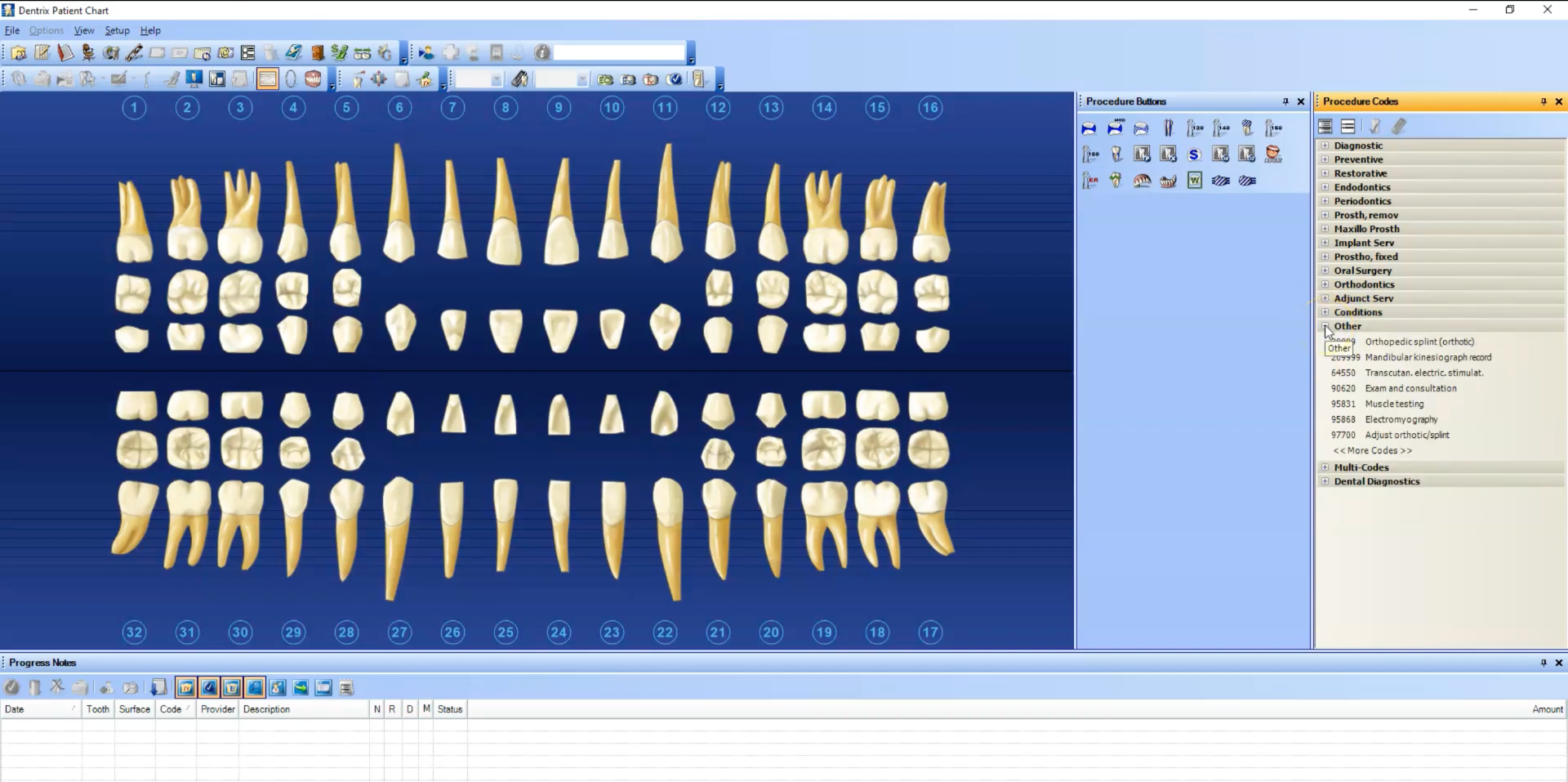
Running a dental practice means managing scheduling, patient records, insurance claims, and payments simultaneously. Dentrix centralizes all of it – serving as the operational backbone for 35,000+ practices across North America. Whether you're evaluating practice management software, setting up a new installation, or troubleshooting existing issues, our Dentrix guide covers everything: core features, setup, common errors, and efficiency tips.
TL;DR
Dentrix is the dominant dental practice management platform, used by 35,000+ offices across North America to unify scheduling, EHR, insurance billing, and patient communications in one system — available in server-based, cloud (Ascend), and enterprise versions.
Setup hinges on network configuration, not hardware. ~90% of performance issues trace back to improper networking, and daily automated backups + periodic DBsweep maintenance prevent most operational headaches.
Common errors (database connectivity, slow load times, comm file corruption) follow predictable patterns with documented fixes. Most resolve by checking server paths, clearing startup caches, disabling LLMNR, and excluding Dentrix folders from antivirus scans.
Efficiency gains come from underused native features – keyboard shortcuts, multi-codes, eClaims automation, Eligibility Pro, and the Practice Growth Suite cut significant admin time when properly configured.
What Is Dentrix?
Dentrix is a comprehensive dental practice management software platform designed to streamline the clinical, administrative, and financial operations of dental offices. Developed and maintained by Henry Schein One, a joint venture between Henry Schein, Inc. and Internet Brands, Dentrix has become the most widely adopted practice management solution in the dental industry.
The software integrates multiple workflows into a single unified system, connecting your front office, clinical staff, and financial processes. Rather than using separate programs for scheduling, charting, billing, and patient communication, Dentrix brings all these functions together in one platform. This integration eliminates data silos, reduces redundant data entry, and ensures that information flows seamlessly throughout your practice.
Market Position and Adoption
Dentrix holds an estimated 25–30% share of the dental practice management software market, with more than 35,000 dental practices using the platform across North America. The software has earned the Townie Choice Award for 24 consecutive years, a recognition that comes directly from dental professionals who use the solution daily.
The broader dental practice management software market continues to grow rapidly. Industry analysts project the market to expand from approximately $2.5 billion in 2024 to between $6 and $8 billion by the mid-2030s, driven by increasing digitization of healthcare workflows and growing demand for operational efficiency.
Dentrix Product Versions
Henry Schein One offers several Dentrix products tailored to different practice needs:
Dentrix (server-based). The traditional on-premises solution is ideal for single-location practices. This version runs on a local server within your office and provides full control over your data and infrastructure.
Dentrix Ascend (cloud-based). A cloud-native platform that allows you to access your practice data from any device with an internet connection. Dentrix Ascend eliminates the need for local server maintenance and software updates, with all data hosted securely in the cloud. It was the first dental practice management software to achieve SOC-2 Type II compliance for data security.
Dentrix Enterprise. Built for larger organizations, dental service organizations (DSOs), and multi-location practices. Enterprise offers centralized data management, advanced reporting, and the scalability needed to manage operations across numerous sites.
Each version shares core functionality but differs in deployment method, scalability, and feature sets designed for specific practice sizes and operational models.
Key Features of Dentrix Software
Dentrix delivers a comprehensive suite of tools that address every aspect of dental practice management. Understanding these features helps you leverage the full potential of the software and identify opportunities to improve your workflows.
Patient Scheduling and Appointment Management
The Appointment Book module serves as the operational hub of your practice. You can view and manage schedules across multiple providers and operatories, with color-coded appointments that make it easy to identify appointment types, provider assignments, and potential scheduling conflicts.
Key scheduling capabilities include:
Custom appointment views that display only the providers, operatories, and time slots you need to see
Automated appointment reminders sent via text message or email through the Practice Growth Suite
Wait list management to fill cancellations quickly
Production scheduling to help meet daily revenue goals
Drag-and-drop functionality for easy appointment rescheduling
Electronic Health Records and Clinical Charting
The Patient Chart module provides a complete digital record of each patient's dental health. The graphical charting interface displays tooth conditions, existing restorations, and planned treatments on an intuitive visual representation of the mouth.
Clinical documentation features include:
Odontogram for recording tooth conditions and restorations
Perio charting for comprehensive periodontal assessments
Clinical notes templates that can be customized to your practice workflows
Medical history tracking with alerts for important health conditions
Prescription management integrated with ePrescribe functionality
With the release of Dentrix Detect AI (powered by VideaHealth), practices using supported versions can access AI-enabled X-ray analysis that provides real-time chairside insights and helps identify conditions that might otherwise be missed.
Treatment Planning Tools
The Treatment Planner module helps you document proposed treatments, track case acceptance, and present treatment options to patients in a clear visual format. You can organize treatment plans into phases, calculate costs, and generate patient-friendly presentations.
Treatment planning capabilities allow you to:
Create detailed treatment plans with procedure codes and fee estimates
Track which treatments patients accept, decline, or defer
Generate printed or digital presentations for patient review
Manage pre-authorizations for procedures requiring insurance approval
Insurance Claim Processing and Billing
Dentrix streamlines the complex process of dental insurance billing through its integrated eClaims service. Claims are created within the Ledger, validated for completeness, and transmitted electronically directly from the software.
Billing and claims features include:
Electronic claim submission to the largest network of dental payors in the industry
Automatic claim validation that flags missing information before submission
Electronic attachment support for X-rays and documentation
Electronic remittance advice (ERA) that posts insurance payments directly to patient accounts
Real-time claim status tracking without calling insurance carriers
Paper claim printing and mailing service for payors that don't accept electronic claims
The Eligibility Essentials and Eligibility Pro tools, released in 2024, pull verified patient insurance information directly into Dentrix, reducing the time staff spend manually verifying coverage through payor portals.
Patient Communication Tools
Effective patient communication drives appointment attendance, treatment acceptance, and practice growth. Dentrix integrates communication tools that automate routine outreach while maintaining a personal touch.
Communication capabilities include:
Automated appointment reminders via text and email
Recall and recare notifications to bring patients back for preventive visits
Two-way texting for convenient patient communication
Online appointment booking through your practice website or Google listing
Reputation management tools to encourage patient reviews
Reporting and Analytics
The Office Manager module provides access to dozens of built-in reports that help you monitor practice performance, identify trends, and make data-driven decisions.
Reporting capabilities include:
Production and collection summaries by provider, procedure, or time period
Accounts receivable aging reports
Insurance aging and outstanding claims tracking
Appointment analysis, including no-show and cancellation rates
Continuing care and recall effectiveness reports
Practices using Jarvis Analytics gain access to more advanced business intelligence tools that aggregate data across locations and provide deeper insights into practice performance.
Document Management and Imaging Integration
The Document Center provides a centralized repository for storing and organizing patient documents, forms, and correspondence. Dentrix also integrates with most major dental imaging systems, allowing you to capture, store, and view digital radiographs and intraoral photographs directly from the Patient Chart.
How to Use Dentrix: Getting Started
Setting up Dentrix properly establishes the foundation for efficient practice operations. While Henry Schein One and certified installers typically handle initial installation, understanding the setup process helps you configure the system to match your specific workflow requirements.
System Requirements and Installation
Before installing Dentrix, verify that your hardware meets the minimum system requirements. For the 2025 version, key requirements include:
Operating system. Windows 10 (64-bit) or Windows 11
Processor. Intel Core series or AMD equivalent, 2.0 GHz or faster
Memory. Minimum 8 GB RAM for workstations, more for servers
Storage. At least 60 GB of free hard drive space (SSD recommended)
Display. 1920 x 1080 resolution or higher
Network. 100 Mbps Ethernet connection to the server
For networked installations, proper cabling and network configuration are critical. Industry experience suggests that approximately 90% of Dentrix performance issues can be traced to improper network setup rather than software problems.
Practice Information Configuration
After installation, configure your practice information through the Office Manager:
Set up practice details, including name, address, phone numbers, and tax ID
Configure provider information for each dentist and hygienist
Define operatories and associate them with appropriate providers
Set up fee schedules for your standard procedures
Configure insurance carrier information and claim settings
User Accounts and Permission Levels
Dentrix uses a security system that controls which features each staff member can access. Create individual user accounts for each team member and assign appropriate permission levels based on their role. This protects sensitive patient and financial information while ensuring staff can perform their necessary functions.
Permission categories include:
Administrative functions like adding providers and changing system settings
Financial access for viewing and adjusting patient accounts
Clinical access for charting and treatment planning
Scheduling access for appointment management
Core Daily Functions
Once configured, your team will use these core workflows daily:
Scheduling appointments. From the Appointment Book, click on an available time slot, select the patient using the Select Patient dialog (or press F2), choose the appointment type and provider, and confirm the appointment. Use the right-click menu on any appointment to access quick actions like opening the patient's chart or ledger.
Patient check-in. When patients arrive, verify their demographic and insurance information in the Family File, confirm their medical history is current, and check them in through the Appointment Book. If you use Eligibility Pro, run an eligibility check to verify current coverage.
Charting during appointments. Open the Patient Chart for the selected patient, document completed procedures using the progress notes, and set the status of any completed treatment. Enter procedure codes either by clicking on the graphical chart or using the procedure entry area.
Processing payments and claims. After treatment, create a claim from the Ledger by selecting the completed procedures and clicking Create Claim. For patient payments, use the Enter Payment function to record the transaction and update the account balance.
Running end-of-day reports. Generate the Day Sheet report to review production and collections for the day. Run the Deposit Slip to reconcile payments received. Back up your database and review any claims that need attention.
Best Practices for Daily Operations
To save time in your daily workflows:
Daily backup procedures. Configure the Dentrix Server Administration Utility to export a copy of your database automatically each night. Store backups on external media or cloud storage, rotating through multiple backup sets so you always have recent restore points.
Regular database maintenance. Run database utilities periodically to maintain optimal performance. The DBsweep utility cleans up communication files and temporary data that can accumulate over time.
Staff training. Invest in proper training for all team members who use Dentrix. Henry Schein One offers training resources, including online tutorials, the Dentrix Magazine, and formal training programs. Well-trained staff make fewer errors and work more efficiently.
HIPAA compliance. Dentrix includes features to help you comply with HIPAA requirements, including audit trails, user authentication, and automatic log-off. Configure these security features and train staff on proper handling of protected health information.
Common Dentrix Problems and Errors
Even well-maintained Dentrix installations encounter occasional problems. Understanding the most common issues helps you troubleshoot effectively and minimize downtime.
Technical Issues
Database connectivity errors. These errors typically appear when a workstation cannot locate or connect to the Dentrix database on the server. Common causes include network connectivity problems, incorrect server path settings, or the database server being offline. You may see messages like "Path not found," "Incorrect file path," or "Database not found."
Slow performance and system lag. Performance issues frustrate staff and reduce productivity. Symptoms include slow loading of modules like Patient Chart or Treatment Planner, screens displaying "Not Responding," or significant delays when switching between patients. Many practices have reported that modules like Chart and Treatment Planner can take upwards of several minutes to open when performance issues occur.
Communication file corruption. The comm_dat files that manage workstation communication can become corrupted, causing the Appointment Book to stop refreshing automatically or generating "file locked" errors. These issues often affect multiple workstations simultaneously.
Printer configuration problems. Print issues range from complete printing failures to incorrect formatting on statements, claims, or reports. These often stem from incorrect printer driver settings or network printer connectivity problems.
Imaging integration failures. When Dentrix cannot communicate with your imaging system, you may see errors like "Unable to initialize image database" or "Could not connect to image database." These typically indicate configuration issues with the integration software or database connectivity problems.
User-Related Problems
Login and authentication issues. Users may encounter problems logging in due to expired passwords, locked accounts, or corrupted user profiles. Network permission changes can also prevent users from accessing Dentrix.
Scheduling conflicts and double-booking. These typically result from communication file issues that prevent real-time schedule updates across workstations, or from user error when staff don't refresh their view before scheduling.
Insurance claim rejection errors. Claims may be rejected due to missing subscriber information, invalid provider registration, incorrect payor IDs, or missing attachments. The eClaims validation process catches many issues, but some errors only surface after transmission.
Reporting discrepancies. When reports show unexpected results, the cause is often incorrect date ranges, improper filter settings, or data entry errors that affect the underlying data.
Software-Specific Errors
If you encounter a "Database Conflict" error, it indicates a version mismatch between your database and program files, often occurring during upgrades. The message typically reads: "The version of the database does not match the version of the DENTRIX program files."
When using Dentrix, you might also encounter eClaims validation errors. The eClaims validation process assigns claims one of three statuses:
Validated. Ready for submission
Warning. Has issues that could delay payment (such as missing payor ID or attachments)
Rejected. Has problems that will cause the insurance company to reject the claim (such as a missing subscriber number)
Windows update conflicts might also slow down the Dentrix platform. Certain Windows updates have caused Dentrix connectivity issues. A notable example occurred with Windows update KB5001330, which affected DNS resolution and caused Dentrix workstations to lose connection to the database server.
Some users report eServices module problems. Issues with eBridge, eCentral, or other eServices components can affect electronic claims submission, patient communication, and other integrated features.
Troubleshooting Guide: How to Resolve Common Dentrix Errors
When problems occur, systematic troubleshooting helps you identify and resolve issues quickly. Always ensure you have a current backup before attempting any repairs.
General Troubleshooting Steps
Restart procedures. Begin with the simplest solution: close all Dentrix modules on the affected workstation and reopen them. If the problem persists, restart the workstation. For server-related issues, you may need to restart the Dentrix Database Engine service or the server itself.
Check network connectivity. Verify that the workstation can access the server by browsing to the shared Dentrix folder. Test the network connection with a continuous ping to the server. If you see dropped packets or timeouts, the problem lies with your network infrastructure rather than Dentrix.
Verify server paths. Use the ep.exe utility in the Dentrix folder to confirm that workstations are configured with the correct path to the server. Incorrect paths are one of the most common causes of "database not found" errors.
Review log files. Check Windows Event Viewer for any errors that coincide with Dentrix problems. Also, examine any Dentrix-specific log files for error messages that might indicate the cause.
Resolving "Path not found" or database connectivity errors
Confirm the server is running and accessible on the network
Verify the shared Dentrix folder has proper network permissions
Check that the mapped drive letter to the server is connected
Run ep.exe to verify and reset the database path if necessary
If the issue affects only one workstation, compare its configuration to a working machine
Fixing communication file issues
Close all Dentrix modules on all workstations
On the server, navigate to the Dentrix\DB\DentrixSQL.DBS folder
Rename the comm_dat.dat and comm_dat.idx files (don't delete them)
Copy fresh comm_dat files from the Dentrix\DB\TutorSQL.DBS folder to replace them
Run the _Maint.exe utility and select "Clear Machine IDs"
Restart workstations and open the Appointment Book one at a time
Addressing slow performance
Disable Multicast Name Resolution (LLMNR) through Group Policy, as this has been a known cause of slowness in Dentrix
Ensure antivirus software excludes the Dentrix folder and database files
Verify that network adapter settings like Receive-Side Scaling and Task Offload are configured properly
Clear the Chart.Startup folder in the Dentrix\Cust directory if Patient Chart loads slowly
Check that your server and workstations meet current system requirements
Resolving imaging database errors
Verify the imaging database service is running on the server
Check network permissions for the imaging folder
Run the IDBadmin utility to optimize and reinitialize the database
For "Could not connect to image database" errors, uninstall and reinstall the imaging integrator software
When to Seek Professional Help
Contact Dentrix support or a qualified IT professional when you encounter:
Persistent database errors that don't resolve with basic troubleshooting
Failed software upgrades or database upgrades
Data corruption or suspected data loss
Issues affecting multiple workstations simultaneously without a clear cause
Problems requiring database restore or repair utilities
You can reach Dentrix Customer Support at 1-800-DENTRIX (1-800-336-8749). If you have a Dentrix Connected Care Essentials plan, you'll have access to priority support, unlimited technical assistance, and in-product chat support.
Preventive Measures
There are a few things that will help you to avoid the most common Dentrix errors:
Regular maintenance schedule. Establish a routine for database maintenance, including weekly DBsweep runs during off-hours and monthly reviews of system performance.
Update management. Keep Dentrix updated to the latest supported version. Henry Schein One provides support only for the latest two versions of Dentrix. Apply Windows updates carefully, monitoring for any Dentrix-specific issues that may be reported in the community.
Staff training programs. Reduce user errors through ongoing training. New staff should receive comprehensive onboarding, and all team members should benefit from periodic refresher training on best practices.
Data backup strategies. Follow the 3-2-1 backup rule: maintain at least three copies of your data, on two different types of storage media, with one copy stored offsite or in the cloud. Test your backups periodically by restoring to a test environment.
Dentrix Tips for Maximizing Practice Efficiency
Beyond basic functionality, Dentrix offers numerous features that can significantly boost productivity when properly utilized.
Keyboard Shortcuts and Time-Saving Features
Keyboard shortcuts eliminate the need to reach for the mouse and click through menus:
F2. Opens the Select Patient dialog in most modules
F3. Prints the current patient's dental chart from Patient Chart
F5. Refreshes configuration settings in Patient Chart
Ctrl+D. Switches to Day View in the Appointment Book
Ctrl+W. Switches to Week View in the Appointment Book
F1–F12. Switch between the custom Appointment Book views you've created
You can also assign custom keyboard shortcuts for Patient Chart navigation through View > Toolbars > Keyboard.
Customization Options for Workflows
Tailor Dentrix to match how your practice operates:
Create custom Appointment Book views for different roles (front desk vs. clinical)
Set up procedure button layouts in the Patient Chart that reflect your most common treatments
Configure Clinical Note templates to speed up documentation
Build custom reports to track the metrics most important to your practice
Use multi-codes to enter common procedure combinations with a single entry
Report Utilization for Practice Insights
Move beyond basic reports to gain actionable insights:
Review production reports by provider to identify opportunities for growth
Monitor accounts receivable aging to improve collections
Track continuing care statistics to maximize patient retention
Analyze appointment patterns to optimize scheduling efficiency
Use the Practice Advisor reports in newer versions for benchmarking
Patient Communication Automation
The Practice Growth Suite automates routine communication tasks:
Configure appointment reminders to send automatically at appropriate intervals
Set up continuing care notifications to recall patients when they're due
Enable online scheduling to let patients book appointments 24/7
Use two-way texting to handle quick patient questions without phone calls
Integration with Other Dental Technologies
Dentrix connects with a broad ecosystem of dental technology:
Digital radiography systems for seamless image capture and storage
Intraoral cameras and scanners
CAD/CAM systems for same-day restorations
Third-party patient communication platforms
Accounting software for financial integration
Mobile Access and Remote Capabilities
Dentrix Ascend users can access their practice data from any location using any device with an internet connection. For practices using server-based Dentrix, remote access solutions like Citrix or Remote Desktop Services enable secure off-site access when properly configured.
Bottom Line
Dentrix represents more than just software. It's the operational backbone that enables modern dental practices to deliver excellent patient care while maintaining efficient business operations. From scheduling and charting to billing and analytics, the platform provides the tools you need to manage every aspect of your practice.
Whether you're new to Dentrix or looking to optimize an existing installation, focus on these key actions:
Ensure your hardware meets current system requirements
Configure automated daily backups and test them periodically
Train all staff members on the features they use most frequently
Explore advanced features like eClaims, Eligibility Pro, and the Practice Growth Suite
Stay current with software updates and new feature releases
Success with Dentrix depends on proper setup, ongoing training, and proactive maintenance. Take time to configure the system to match your workflows, invest in training for your team, and establish routines for database backups and system maintenance. When problems arise, systematic troubleshooting resolves most issues quickly, and Dentrix support resources are available when you need additional help.
Frequently Asked Questions
What is Dentrix used for?
Dentrix is a comprehensive dental practice management software used to streamline clinical, administrative, and financial operations in dental offices. The platform handles patient scheduling, electronic health records, clinical charting, treatment planning, insurance claim processing, billing, patient communication, and reporting. Dentrix integrates these functions into a single system, eliminating the need for separate programs and reducing redundant data entry across your practice workflows.
How much does Dentrix cost?
Dentrix pricing varies based on the version and features you select. The traditional server-based Dentrix typically requires an upfront license fee plus ongoing support costs through the Dentrix Connected Care Essentials plan. Dentrix Ascend, the cloud-based version, operates on a subscription model with pricing that generally ranges from approximately $400 to $1,600 per month, depending on the number of users and features included. Contact Henry Schein One directly for a customized quote based on your practice size and requirements, as pricing is not publicly listed.
What is the difference between Dentrix and Dentrix Ascend?
Dentrix is the traditional server-based version that runs on a local server within your dental office, giving you direct control over your data and infrastructure. Dentrix Ascend is the cloud-based version that hosts your data securely online, allowing you to access your practice information from any device with an internet connection. Dentrix Ascend eliminates local server maintenance, provides automatic software updates, and was the first dental practice management software to achieve SOC-2 Type II compliance. Both versions share core functionality but differ in deployment method, accessibility, and IT requirements.
What are the system requirements for Dentrix?
For the 2025 version of Dentrix, minimum system requirements include Windows 10 or Windows 11 (64-bit), a processor running at 2.0 GHz or faster, 8 GB of RAM, at least 60 GB of free hard drive space, and a display resolution of 1920 x 1080 or higher. Server installations require additional resources. An SSD is recommended for improved performance, and workstations should connect to the server via a 100 Mbps Ethernet connection. For Dentrix Ascend, requirements are simpler since it runs in the Google Chrome browser.
How do I fix slow performance in Dentrix?
Slow Dentrix performance often stems from network configuration issues rather than hardware limitations. Common solutions include disabling Multicast Name Resolution (LLMNR) through Group Policy, ensuring your antivirus software excludes the Dentrix folder and database files, verifying that network adapter settings are properly configured, and clearing the Chart.Startup folder if the Patient Chart loads slowly. Also, confirm that your server and workstations meet current system requirements and that no unnecessary background applications are consuming resources.
Why is my Dentrix not connecting to the database?
Database connectivity errors typically occur when a workstation cannot locate the Dentrix database on the server. Check that the server is running and accessible on the network, verify that the shared Dentrix folder has proper network permissions, confirm the mapped drive letter is connected, and run the ep.exe utility to verify the correct database path. If only one workstation is affected, compare its configuration settings to a working machine. Network cable issues and switch problems account for the majority of connectivity failures.
How do I back up my Dentrix database?
Use the Dentrix Server Administration Utility to configure automated database exports. Access the utility by running _ServerAdmin.exe from the Dentrix folder, navigate to the Export/Restore Database tab, enable Scheduled Exports, and set the time and days for automatic backups. The export should run before your backup software copies the files. Back up the Common\DBCopyForBackup folder, the Common\DentrixSQL folder, and the Common\Doc folder. Use a rotation system with multiple backup media and store at least one copy offsite or in the cloud.
Can I use Dentrix on a Mac?
The traditional server-based Dentrix requires Windows and does not run natively on Mac computers. However, Dentrix Ascend is cloud-based and runs in the Google Chrome browser, making it accessible from Mac computers as well as Windows PCs, tablets, and iPads. If you need to use the server-based Dentrix on a Mac, you would need to run Windows through virtualization software like Parallels Desktop or Boot Camp, though this is not officially supported.
Does Dentrix integrate with dental imaging systems?
Yes, Dentrix integrates with most major dental imaging systems, allowing you to capture, store, and view digital radiographs and intraoral photographs directly from the Patient Chart. The software supports integration with various X-ray sensors, intraoral cameras, and panoramic imaging systems. Dentrix Imaging software is included with Dentrix Connected Care Essentials and embeds directly in the chart. Newer versions also support Dentrix Detect AI, which provides AI-enhanced X-ray analysis powered by VideaHealth.
How do I contact Dentrix support?
You can reach Dentrix Customer Support by calling 1-800-DENTRIX (1-800-336-8749). Support hours are Monday through Thursday from 6:00 AM to 6:00 PM Mountain Time, and Friday from 6:00 AM to 5:00 PM Mountain Time. Practices enrolled in Dentrix Connected Care Essentials have access to priority support, unlimited technical assistance, and in-product chat support. For eClaims and electronic services support, call 800-734-5561. You can also access online resources through the Dentrix Resource Center and Dentrix Magazine.