Dentally Login: Sign-In Steps and Error Fixes
Dentally login is simply the sign-in step for Dentally, the cloud-based practice management software used by dental practices across the UK, APAC, and Canada. Every day, admins,...
Written by Agnes Markovic
Read time: 5 min read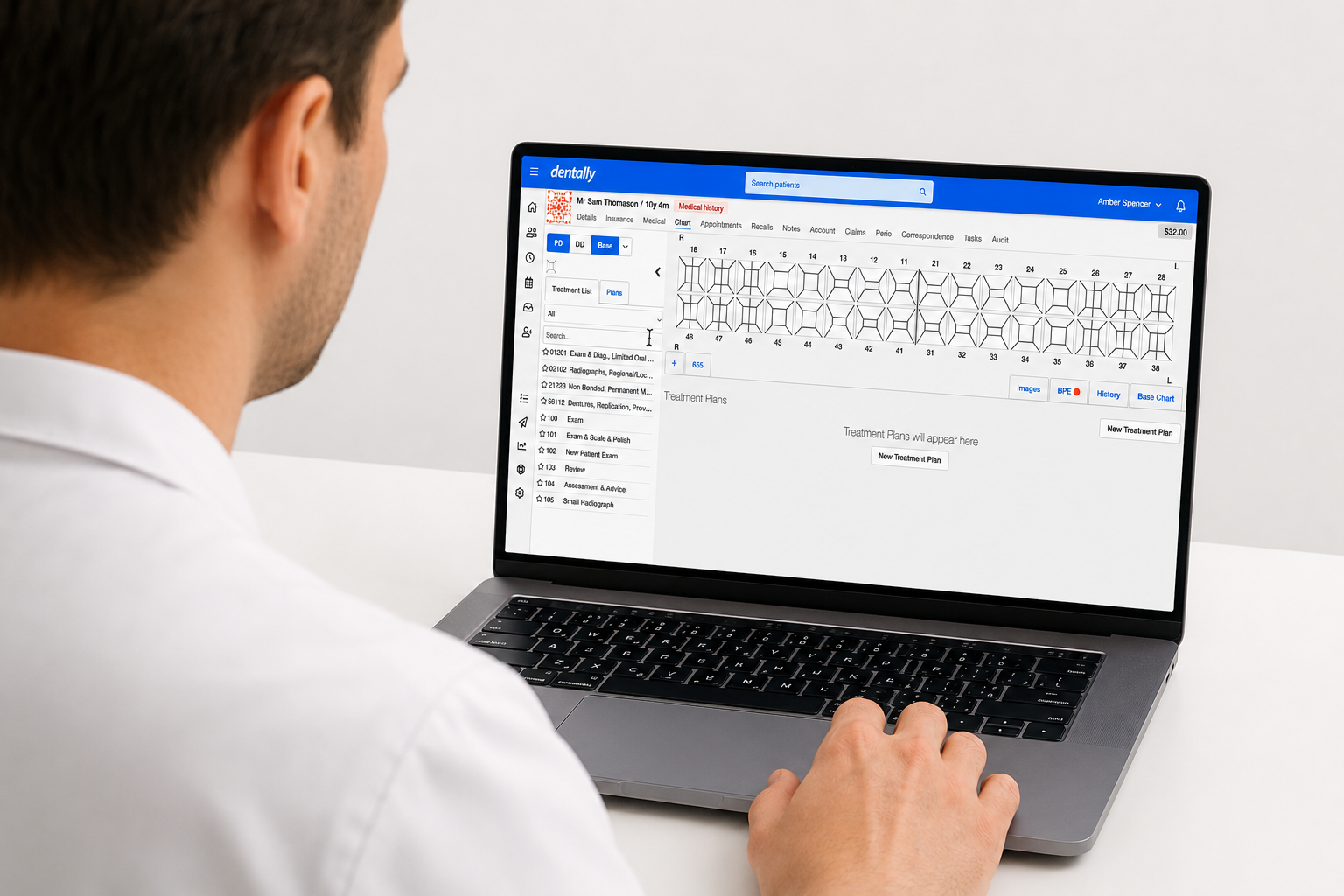
Dentally login is simply the sign-in step for Dentally, the cloud-based practice management software used by dental practices across the UK, APAC, and Canada. Every day, admins, clinicians, and assistants log in to pull up appointments and patient charts, so a working login is the starting point for the whole day. This guide walks through the sign-in process, the errors people run into most often, and the difference between staff login and patient login.
TL;DR
Sign in at the correct regional URL, since Dentally hosts UK/ROI, APAC, and Canadian accounts separately
Fix most login failures with a password reset or a browser cache clear
Dentally locks an account after 5 failed login attempts and sends an unlock email automatically
Keep Dentally login separate from Dentally Portal login, since one serves staff and the other serves patients
What Is Dentally?
Dentally is a cloud-based dental practice management software. It runs entirely in a web browser. Practices use it to manage appointment books, patient records, clinical charting, and imaging. No local server installation is needed.
The platform belongs to Henry Schein One. The company acquired Dentally in 2020 through its Software of Excellence division. A British Dental Journal report covered the acquisition. Dentally now serves practices across the UK, Ireland, Australia, New Zealand, and Canada. It connects with tools such as intraoral scanners and imaging systems through its Dentally Vision module.
Because Dentally runs in the browser, a Dentally login is the only gateway to the system. There is no desktop client to fall back on if sign-in fails. Google Chrome is the browser Dentally recommends for daily use. This browser-first setup is common across cloud practice software. It mirrors the login pattern used by platforms such as DS Core and MyITero.
Inside a logged-in account, a practice can manage the daily diary and review patient charts. Staff can process payments and share treatment information through Dentally Portal. Teams building out a dental treatment plan can move from charting to a finished plan quickly. This connected structure explains why login access shapes what a practice can do each day.
How To Log In To Dentally
Signing in to Dentally follows a short, consistent process once an account exists. The steps below cover a standard login from a returning user.
Open an updated browser, ideally Google Chrome, on a computer, laptop, or tablet
Go to the correct regional login page for the practice's account
Enter the email address on file with the practice
Enter the account password
Select the login button to submit the credentials
Complete a two-factor authentication prompt if one appears
Confirm the dashboard loads with the appointment book and patient list visible
Dentally logs a user out automatically after a period of inactivity. Signing back in after a break is expected, not a sign of a problem. Practices with single sign-on enabled should use the SSO login path instead, covered next.
Dentally Login By Region
Dentally login runs through three separate regional addresses, not one global page. Using the wrong one is a common reason a login fails, even with the correct password.
UK and Ireland: app.dentally.co/login
Australia and New Zealand: app.apac.dentally.com/login
Canada: app.ca.dentally.com/login
Australian users moved to the APAC address in July 2025. Anyone still using an older bookmark should update it. Bookmarking the correct regional page prevents this from recurring. This helps staff who cover more than one site.
Practices with single sign-on enabled can go directly to app.dentally.co/sso. This skips the standard login page. This works across UK/ROI, APAC, and Canadian accounts with SSO configured.
Setting Up Dentally Login For A New User
New Dentally accounts are not self-created. A practice administrator adds each team member first. That person then completes their own setup.
An admin adds the new user under settings and user management
The new user receives an invitation email at the address the admin entered
The new user opens the email and follows the link to set a password
The password must meet Dentally's requirements, covered below
The new user signs in at the correct regional login page
The new user can turn on two-factor authentication in account settings
Dentally requires a password of at least 10 characters. It must include one uppercase letter, one lowercase letter, one number, and one special character. A missed invitation email is the most common reason a new account cannot sign in. Check spam and junk folders first.
Common Dentally Login Issues And How To Fix Them
Most Dentally login problems fall into a handful of categories. Working through the matching section below resolves the majority of cases without contacting support.
Dentally Invitation Email Never Arrived
A brand new account often looks broken when it is simply unverified. The account exists, but the new user needs the invitation email to set a password first.
Check spam, junk, and promotions folders first
Search the inbox directly for "Dentally" rather than scrolling
Confirm the email address on file is correct
Ask the admin to resend the invitation if it still does not appear
Select the link inside the email promptly once it arrives
Forgotten Dentally Password
A forgotten password has a direct fix built into the login screen. There is no need to create a second account or wait for help.
Go to the Dentally login page for the correct region
Click "Forgotten your password?" beneath the login fields
Enter the email address linked to the account
Click "Reset password" and check the inbox, including spam
Open the email and follow the link to set a new password
Create a password meeting the 10-character minimum, with uppercase, lowercase, a number, and a special character
Return to the login page and sign in with the new password
A password can also be changed while logged in. Go to the account menu, then "My account," then "Security" to update it.
Account Locked After Failed Login Attempts
Dentally automatically locks an account after 5 failed login attempts to protect patient data. This is a security measure, not a technical fault.
Stop attempting further logins once a lockout message appears
Check the inbox for an automatic unlock email
Select the secure link inside that email to restore access
Request a new unlock email if the first one does not arrive
Check spam and junk folders before assuming the email never sent
Requesting a new unlock email cancels the original link, so use the most recent email received.
Two-Factor Authentication Code Not Arriving
A missing 2FA code usually points to a short delay or a filtering issue.
Wait a minute or two, since codes can take a moment to arrive
Check spam or junk folders for the delivery channel in use
Confirm the email address or phone number on file is current
Ask a practice admin to verify the contact details on the account
Contact Dentally support if the code still does not arrive
Wrong Regional Login URL
An account that appears missing, despite a completed setup, sometimes points to a regional mismatch instead.
Confirm which regional address the account was set up under
Use that exact regional URL, not a different country's login page
Run the password reset flow if unsure, since a successful reset confirms the account
Check with the staff member who created the account for multi-site practices
Avoid creating a second account to work around a suspected regional issue
Creating a duplicate account risks splitting patient data across two separate logins.
Browser-Related Access Problems
Dentally runs entirely inside a browser, so browser issues are a common source of login trouble. These issues have nothing to do with the account itself.
Confirm the browser is a current, supported version
Clear the browser's cache and cookies
Try a private or incognito window to rule out saved cache
Turn off ad blockers or privacy extensions temporarily
Try a different browser or device to isolate the problem
Mobile App Login Issues
Some users find that credentials working fine on desktop are rejected inside the Dentally mobile app. This points to the app, not the account.
Confirm the app is updated to the latest version
Confirm the login is pointed at the correct regional account
Log out of the app fully and sign back in
Reinstall the app if the issue continues
Use the desktop browser login as a working fallback
How To Contact Dentally Support
Self-service troubleshooting resolves most Dentally login issues. Some cases still need direct help from Dentally's support team.
Dentally offers support chat through its help center. This includes an AI assistant for quick answers and a live team for complex issues. Before reaching out, gather the account email and a description of the exact error. Note the browser or device in use too. A practice administrator can often fix a teammate's login issue directly. This includes unlocking an account or correcting an email address. This admin-first approach fits well into a wider dental practice business plan. It keeps login responsibilities clear before a busy day exposes a gap.
Support channel details change over time. Confirming the current contact options directly on Dentally's help center is worth the extra step.
Dentally Login Vs. Dentally Portal Login
Dentally login and Dentally Portal login serve two different audiences. Mixing them up leads to time spent on the wrong sign-in screen.
Dentally login is the staff-facing system for appointments, patient charts, and daily operations. Dentally Portal login is the patient-facing product for online booking, digital forms, and payments. Portal is accessed separately at portal.dentally.com, or through the Portal icon inside a Dentally account. A practice admin configures Portal settings from inside their own Dentally login. A patient signing into Portal uses entirely separate credentials tied to their own record. Online booking through Portal also reduces friction for new patients. The guide to getting more dental patients covers this wider patient acquisition work.
Staff never need a Portal login to do their jobs. Patients never need a staff Dentally login to book an appointment or fill out a form. Keeping the two separate avoids confusion when a login problem belongs to a different system. Software-specific errors often need different fixes across platforms. The guide on Eaglesoft errors covers one such example.
What You Can Do After Logging In
A completed Dentally login opens into a dashboard built around daily tasks for a dental team.
A logged-in account can manage the appointment diary and update patient records. Staff can chart clinical findings and process payments. Dentally Vision brings imaging into the same workflow. Scans and X-rays sit alongside the rest of a patient's record. Practices can also configure Dentally Portal from within the same login. This gives patients a way to book and pay online without extra front desk work. The practice management software guide on Dental Reviewed compares Dentally against other leading platforms. The dental TPA software roundup covers related administrative tools a practice may run alongside it.
Administrator accounts see additional settings that a general clinician login does not. This includes user management and security configuration. Confirming who holds admin access during setup avoids delays later.
Keeping Your Dentally Account Secure
A Dentally account holds patient records and financial data. Basic account hygiene matters beyond simply completing the sign-in step.
Give each team member an individual login, not one shared password
Use a unique password that meets Dentally's length and character requirements
Turn on two-factor authentication where it is available
Update passwords after any staff member with account access leaves
Treat unexpected emails claiming to be a Dentally login or reset message with caution
Check a suspicious email's sender address before clicking any link inside it
Log out of Dentally on shared or public computers
Review which staff members hold active accounts and remove access when no longer needed
The Cybersecurity and Infrastructure Security Agency recommends long, unique passwords paired with multi-factor authentication. This guidance applies directly to a cloud system like Dentally. Dentally account hygiene fits into a wider security routine. The new dental practice checklist on Dental Reviewed covers the rest of that plan.
Bottom Line
Dentally login runs through a browser and ties to a regional account, not one shared address. Most access problems come down to a forgotten password, a lockout, or the wrong regional URL. Each one has a direct fix. Dentally Portal login remains a separate system for patients, built for booking and forms.
Frequently Asked Questions
What is the Dentally login page?
Dentally login runs through a regional address, not a global page. Separate URLs exist for UK/ROI, APAC, and Canadian accounts. Confirming the correct regional page is the right first step before entering any credentials.
How do I log in to Dentally for the first time?
A practice admin adds a new user first. That person then receives an invitation email to set a password. Signing in then follows the standard process at the correct regional address.
Why can't I log in to Dentally?
Most login failures come from a forgotten password or a lockout after 5 failed attempts. An outdated browser or the wrong regional URL can also block access. Password recovery and browser checks resolve most cases.
What to do if my Dentally account is locked?
Dentally locks an account after 5 failed login attempts. It sends an unlock email to the address on file. Selecting the secure link inside that email restores access.
How do I reset my Dentally password?
Click "Forgotten your password?" on the login page and enter the account email. Follow the reset link sent by email. The new password needs 10 or more characters. It must include uppercase, lowercase, a number, and a special character.
Is Dentally login different in the UK, APAC, and Canada?
Yes, each region uses its own login address. Australian users moved to a new APAC address in July 2025. Using the wrong regional page is a common reason a login attempt appears to fail. The fix is usually quick.
Is Dentally Portal login the same as Dentally login?
No, Dentally login is for staff managing the practice. Dentally Portal login is a separate, patient-facing system for booking and forms. The two use different credentials and serve different users.
Can I log in to Dentally from a mobile device?
Yes, Dentally offers a mobile app for iOS in addition to browser access. Some users find the desktop login more reliable for full functionality. Updating the app and confirming the correct region usually resolves mobile-specific issues.
How do I contact Dentally support for login issues?
Dentally offers support chat through its help center. This includes an AI assistant and a live team for complex problems. Having the account email, the exact error, and the device in use ready speeds things up.