iTero Login: MyITero Sign In For US Dental Practices
An iTero login opens MyITero, Align Technology's cloud portal for scans, Invisalign cases, and lab work. Align rolled out a new sign-in screen in January 2026. This guide covers...
Written by Maren Solvik
Read time: 6 min read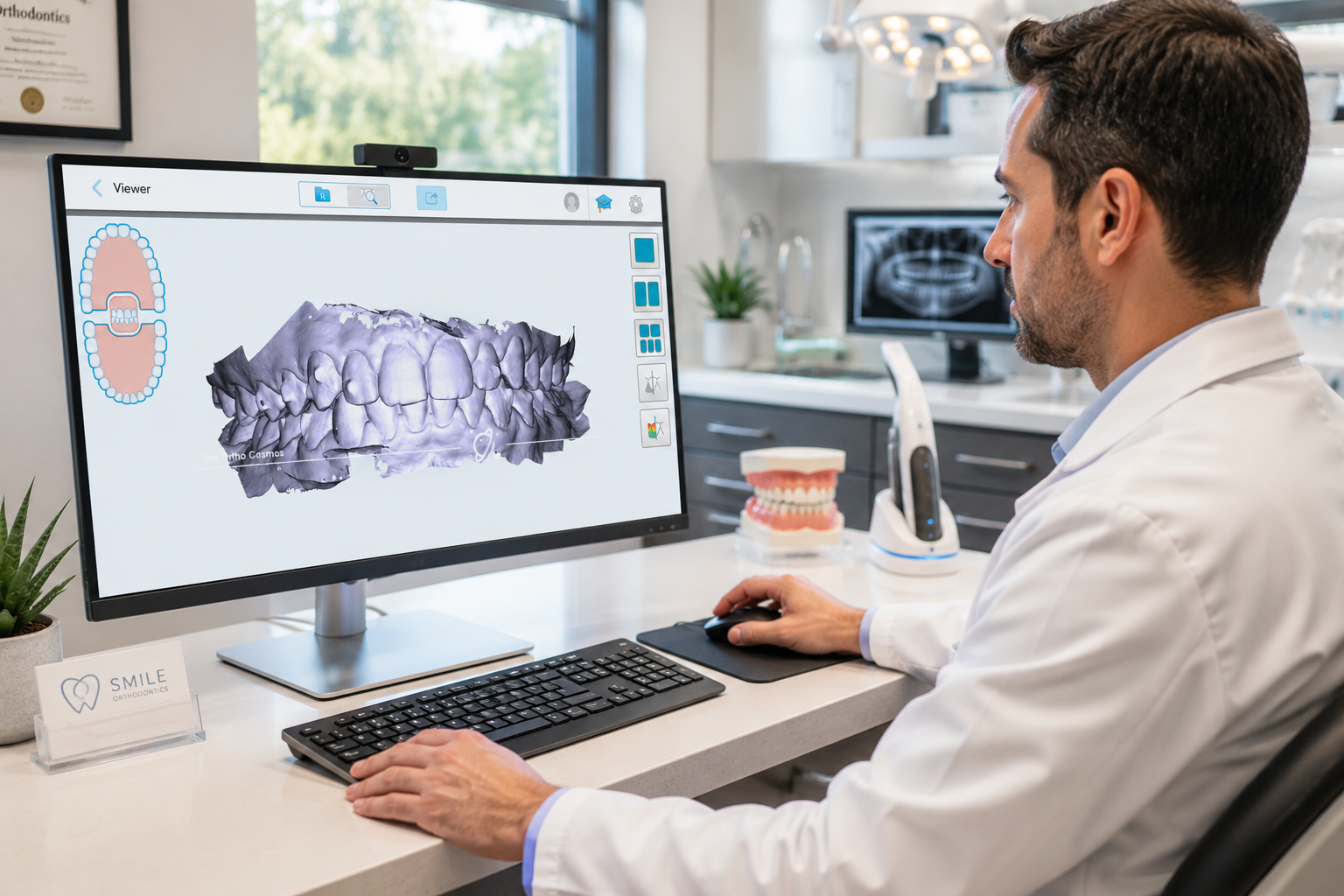
An iTero login opens MyITero, Align Technology's cloud portal for scans, Invisalign cases, and lab work. Align rolled out a new sign-in screen in January 2026. This guide covers signing in, setting up an account, and fixing common errors for a US practice.
TL;DR
Log in to MyITero at myitero.com, which routes through Align's updated US sign-in screen.
Align rolled out a new sign-in experience in January 2026, new layout, same account credentials.
Most iTero login errors trace back to email mismatch, Caps Lock, or an expired session.
Call 1-800-577-8767 for iTero login, account, or scanner support from a US practice.
What Is MyITero And How Does The Login Work?
MyITero is Align Technology's cloud portal for iTero scanners, labs, and Invisalign cases. Every login opens the same dashboard. A doctor and a lab technician see different tools on it, though.
The portal stores 3D scan data and routes prescriptions to labs. It also handles Invisalign case submissions and lab messaging from the same login.
A scan from a connected iTero scanner uploads automatically once the capture finishes. It opens on a PC, Mac, or tablet within seconds, with nothing extra to install. More than 40 dental partner platforms connect with MyITero as well. The list spans practice management software, imaging systems, CAD or CAM tools, and 3D printers.
What Changed In The New iTero Sign-In Experience?
Align rolled out an updated sign-in flow in January 2026. If the login screen looks unfamiliar, that reflects the recent update. Only the page changed, and the account behind it didn't move.
The login page now lives at a new address, bff.cloud.myitero.com/login, and typing myitero.com redirects there automatically. Align also kept the old login screen live at a separate address. Accounts not yet switched over can still use it. Nothing about the credentials changed – same email, same password.
The visual layout and page address changed. Credentials did not change.
Password reset still works the same way, through a security question and a temporary emailed password.
A legacy login screen remains available for accounts still on the older flow.
Align's iTero Learning Center walks through the new screen step by step.
Anyone with the old page bookmarked should update it to myitero.com. The redirect handles the rest automatically. A stale bookmark is the most common reason a returning user sees an unfamiliar screen.
How Much Does MyITero Cost?
The MyITero portal comes bundled with every iTero scanner purchase. Core features carry no separate monthly fee. Cost stays tied to the hardware rather than a recurring software fee.
The iTero Design Suite is the exception: exocad-powered CAD tools for in-practice 3D printing. Align bundles it with eligible service plans for a period, then prices it separately after that. Align's own product announcement covers current terms.
How Do You Create A MyITero Account?
Align Technology creates most accounts automatically after a scanner purchase. Knowing the setup steps helps a US practice manager handle onboarding without waiting on a rep.
Check your email for an activation link from Align Technology
Go to myitero.com and follow the link, or click Create Account
Set a password with 8 characters, using uppercase, lowercase, numbers, and an optional symbol
Enter your practice name, address, and your National Provider Identifier, or NPI number
Pair your scanner over Ethernet or Wi-Fi to the same account
Invite team members and assign roles like technician or coordinator
Run the onboarding tutorial, which takes about 20 minutes
For DSOs and multi-location US practices, MyITero supports parent and child account hierarchies for central reporting. Contact Align Technology's enterprise team before onboarding each location.
For dental laboratories, select dental laboratory as the account type and add a CDL number. Registered labs become visible to iTero connected practices nearby.
How Do You Log In To MyITero?
The iTero login process follows the same basic pattern for doctors, coordinators, and lab staff. It runs through Align's sign-in screen and takes about a minute for an active account.
Open Chrome, Firefox, Edge, or Safari on your computer or phone
Type myitero.com in the browser address bar
Allow the redirect to Align's updated sign-in screen to load fully
Enter the email address linked to your Align Technology account
Enter your password, which is case-sensitive
Click Log In, then enter your two-factor code if prompted
You now see the MyITero dashboard, with active cases, recent scans, and pending prescriptions. Anyone stuck on the old-looking screen can use the legacy sign-in link instead.
Can You Log In To iTero On Mobile Devices?
MyITero runs in any mobile browser, no native app required. The login screen looks the same on a phone, tablet, or desktop. Nobody needs separate training just because the screen got smaller.
On iOS, add myitero.com to the home screen for one-tap access. Android works the same way through Chrome's Add to Home Screen option. The separate Invisalign app covers its own workflows entirely. Scan management and login stay in the browser.
What's Different Between A Doctor Login And A Provider Login?
The MyITero login page looks identical for every account type. What loads after that login depends on the role attached to the account.
What Does A Doctor Login Show?
A doctor's login opens the clinical side of the portal first.
Active cases sorted by patient, with prescription and scan status
The Outcome Simulator and TimeLapse tools for treatment planning
Direct submission tools for Invisalign and restorative prescriptions
Practice-wide reporting for multi-location or DSO accounts
A typical doctor session runs in this order:
Open Cases, then select a patient with an active scan
Review the scan and any NIRI findings before treatment planning
Run the Outcome Simulator, then discuss results with the patient
Submit the prescription, which routes to the lab or ClinCheck automatically
What Does A Lab Or Provider Login Show?
A dental laboratory login opens a different set of tools.
Incoming cases from every connected doctor account
Exocad and CAD or CAM export options for fabrication
Return to doctor flagging for cases needing another scan
No access to a doctor's Outcome Simulator or ClinCheck tools
A typical lab session runs in this order:
Open Cases, then filter for newly submitted scans
Review the scan for gaps or missing bite registration
Export the case to exocad or another CAD or CAM tool
Flag return to doctor if the scan needs a retake
Mark the case complete once fabrication finishes
What Does A Staff Or Coordinator Login Show?
Coordinators and other staff log in under a doctor's account. A role assigned by the practice controls access.
Scan upload and case tracking without prescription authority
Scheduling and TimeLapse capture during recall visits
No billing or account-level settings access unless specifically granted
A typical coordinator session runs in this order:
Log in under the assigned coordinator role
Capture or upload a monitoring scan at recall visits
Update scheduling notes tied to the case
Escalate anything urgent to the supervising doctor
Account type and role get set during setup, covered above under account creation.
How Do You Secure MyITero Login On Shared Computers?
MyITero stores protected health information behind every iTero login. A few habits keep shared computers secure between users. This matters most where several staff share one workstation.
Log out fully instead of closing the browser tab
Skip saving passwords in browser managers on shared devices
Turn on two-factor authentication under account settings, then security
Set the shortest session timeout your workflow allows
What Can You Do On The MyITero Dashboard After Login?
The dashboard opens right after login and organizes work by module. Each section supports a different part of the scanning workflow, from case tracking to automated alerts.
What Is The Cases Module?
The Cases module is the main workspace for clinical staff. Cases sort automatically by status, which makes it easy to spot what needs attention first.
Submitted: Prescription sent to a lab or Align Technology
In progress: Scan captured, but prescription not yet sent
Returned to doctor: The lab flagged the case for more scanning
Complete: Closed cases kept for archival review
Clicking any case opens the 3D scan viewer and prescription details. The full message history from the lab sits alongside it.
What Are TimeLapse And The Outcome Simulator?
TimeLapse lines up a current scan against earlier ones from the same patient. The Outcome Simulator does something different. It projects how teeth will move during Invisalign treatment before it starts. Both live inside the same case file.
Attribute every monitoring scan to the same patient record
Open the patient profile, then select View TimeLapse
Use the timeline slider to compare dates side by side
Run the Outcome Simulator chairside so patients see projected results early
What Does MyITero Automate?
Several workflows run automatically once a scan reaches the portal. These reduce manual steps for both practices and labs, cutting phone calls and status checks.
Scan upload after capture, with no user action required
Email and dashboard alerts to labs when a new case arrives
Automated return-to-doctor alerts when a lab flags a case
ClinCheck status notifications at each stage of Invisalign approval
TimeLapse comparisons generated for patients with multiple scans on file
How Do You Submit An Invisalign Case Through MyITero?
Invisalign and iTero come from the same company, Align Technology. The iTero login route is the fastest way to submit an Invisalign case. For a full list of intraoral scanners compatible with Invisalign, review that comparison before you purchase.
Complete upper, lower, and bite scans before starting a prescription
Add clinical photographs to the case file if your protocol includes them
Open the case, then start the Invisalign prescription form
Run the Outcome Simulator, then share results with the patient
Submit the case, which routes directly to Align Technology's ClinCheck team
ClinCheck status updates appear in MyITero, with an email notification for each stage. The iTero Lumina Invisalign compatibility guide covers configuration notes specific to that scanner.
How Do You Perform A 3D Impression With the iTero Scanner?
A 3D impression replaces physical PVS or alginate impressions completely. The scanner builds a digital model of teeth and soft tissue as it moves across them. How well that turns out comes down to prep and technique, in roughly equal measure.
Install a fresh sleeve, then confirm the scanner is signed into MyITero
Create or find the patient record, then select the scan type
Scan the lower arch first, then the upper arch
Capture the bite, then review the model for gaps
Submit the scan, which uploads to MyITero automatically
The two checklists below cover each of those steps in more detail.
What Belongs On A Pre-Scan Checklist?
A short checklist before the appointment prevents most scanning problems. Run through these items with the patient already seated.
iTero sleeve, ordered from the iTero Store
Confirm the scanner is online and signed into your MyITero account
Create or find the patient record on the scanner
Select the scan type, choosing Invisalign, restorative, study model, or retainer
Dry the teeth briefly, since moisture causes most data gaps
What Is The Right Scanning Technique?
Technique matters as much as equipment for a clean scan. Follow this sequence for a complete, gap-free model on the first pass.
Begin with the lower arch, sweeping lingually, buccally, then occlusally
Move at a steady pace, since speed creates gaps and delay adds nothing
Watch the model build on screen, then cover any grey areas
Capture the upper arch using the same pattern
Record the bite by scanning the buccal corridor from both sides
Review the finished model, then tap submit to upload
A dental treatment plan depends on a clean scan, so a gap matters. It's the single most common reason a lab sends a case back for a rescan.
What Does MyITero Offer Dental Laboratories?
Dental labs get more out of MyITero than a scan inbox. Case management, quality control, and communication all run through the same place. A lab does not need to own a scanner to use any of it.
Real-time scan receipt, arriving within minutes of capture
Return to doctor workflow, flagged with a single click
Exocad integration, routing scans directly into exocad's DentalDB
NIRI access, showing internal tooth structure on compatible scans
Device-agnostic access, reviewed from any PC, Mac, or tablet
For fabrication context, see the guide to the best dental 3D printers.
How Do You Order Sleeves And Supplies From The iTero Store?
The iTero Store is Align Technology's official shop for scanner consumables. It runs on the same login as MyITero. No separate account is needed to place an order.
Open shop.itero.com in a browser
Log in with the same Align Technology email and password used for MyITero
Search by product name or your exact scanner model, since sleeves are not interchangeable across models
Select the sleeve size or accessory needed, then choose a box quantity
Add the item to the cart
Confirm the shipping address matches the practice location on file
Enter payment details and place the order
Track the order from the account dashboard. US orders ship within 2 to 5 business days
A few items make up most orders placed through the store.
iTero sleeves, sold by model in boxes of 25
Full-barrier sleeve kits, mandatory for the 5D Plus Series in the United States
Wand tips and replacement components
Cables and power accessories
Canadian and UK practices use their own regional iTero shops instead. If an order goes missing or shows up late, that's a store account problem. Take it to shop.itero.com/pages/contact-us instead of general account support.
What Does MyITero Integrate With?
MyITero doesn't sync directly with general CRM platforms like Salesforce or HubSpot out of the box. It does connect to a set of dental-specific systems, listed below.
Exocad, through the iTero-exocad Connector into DentalDB
3D printing systems, since STL exports work with most major printers
Imaging systems, since NIRI data pairs with compatible radiography platforms
Align Technology, since all case data flows to ClinCheck automatically
40+ dental partner platforms, listed under settings, then integrations
For broader context on connecting scan data to other tools, see the 2026 AI adoption survey.
Why Won't MyITero Let You Log In?
Most login and account problems trace back to a small set of causes. The new sign-in screen adds one more. A stale bookmark pointing at an old address. Each item below lists the fastest fix first.
What If Your Username Or Password Is Incorrect?
Nine times out of ten, the problem traces to an account mismatch rather than the portal. A personal email typed out of habit is the usual culprit. It simply doesn't match what's on file.
Confirm the email matches your Align Technology account rather than a personal address
Check Caps Lock, since passwords are case-sensitive
Click Forgot Password on the login page for a reset link
Why Does The Login Page Look Different?
This is the January 2026 update showing up. Your account itself is fine. The screen looks different, but what logs you in has not changed.
Open myitero.com or bff.cloud.myitero.com
Clear the browser cache if the page looks broken or does not load
Use the legacy login page only if the new screen fails to load
What If The Password Reset Email Never Arrives?
A missing reset email is almost always a delivery issue. Aggressive spam filtering is the usual cause.
Check the spam or junk folder first
Confirm your email server allows messages from aligntech.com
Wait 5 minutes, then request the reset link again
What If Your Account Gets Locked?
MyITero locks an account after enough wrong password attempts in a row. It protects patient data, though it can occasionally catch someone who simply forgot a password.
Wait 30 minutes before trying again
Reset the password instead of guessing further
Call support if the lock does not clear after an hour
What If You Don't Receive A Two-Factor Code?
A missing 2FA code is usually a sync issue. The cause is often an outdated phone number or a drifted authenticator clock.
Confirm the mobile number in account settings is current
Sync your phone's clock if using an authenticator app
Use a backup code, then update your 2FA method
Why Did MyITero Log You Out Automatically?
MyITero logs out idle sessions on its own, to protect patient data. Getting kicked out mid-task is almost always that timeout at work.
Log back in with your usual email and password
Adjust the session timeout under account settings, then security
Avoid multiple open tabs signed into different accounts
Why Won't Your Scanner Connect To MyITero?
A scanner that won't connect means new scans stop reaching the account entirely. The cause is usually the network or a mismatched account rather than the hardware.
Check settings, then network, on the scanner touchscreen
Confirm no firewall blocks outbound traffic on port 443
Verify the scanner is signed into the correct account
Restart the scanner, then log in again
Why Isn't Your Scan Appearing After Upload?
A finished scan can still be missing from the dashboard for a few minutes. That is almost always a short delay in the upload.
Look for a successful upload confirmation on the scanner screen
Check the scanner's upload queue for failed transfers
Wait 5 minutes, then refresh the Cases view
Is Your Browser Not Supported Or Outdated?
Chrome, Firefox, Edge, and Safari all work fine with MyITero. An old, unsupported browser tends to fail quietly. No error appears, the login screen just won't load.
Update your browser to the latest version
Avoid older browsers that no longer receive security updates
Switch browsers temporarily if one fails to load the portal
What If You Selected The Wrong Account Type?
Picking doctor instead of dental laboratory changes which tools appear on the dashboard. It's a quick fix, and it won't touch existing case history.
Contact Align Technology support to correct the account type
Avoid creating a second account, since this splits case history
Confirm your role with your practice administrator before registering
How Do You Contact iTero Support?
Align Technology's toll-free line is 1-800-577-8767. It covers account, login, and scanner support on weekdays, 8 AM to 8 PM EST. Email support runs through iterosupport@aligntech.com.
General account and login support, 1-800-577-8767
Corporate inquiries, reaching Align Technology's headquarters in San Jose, California, 1-408-470-1000
Store orders and consumables, shop.itero.com/pages/contact-us
That same toll-free line also covers Canada. Align runs separate numbers for the UK, Germany, and Switzerland, listed on iTero's website.
How Do You Get Faster Support Resolution?
Calls move faster when the caller has account details ready. Gather the following before you dial.
Your Align Technology account number, found in account settings
Your scanner serial number, found under Settings, then About
A description of the issue, plus any error codes shown
Steps already tried, such as a restart or cache clear
For billing questions, the dental codes explained reference maps procedures to the correct codes.
How Does MyITero Compare To Other Digital Dental Portals?
MyITero is one of several cloud-based scanning portals a US practice might run into. The iTero vs Primescan comparison covers the hardware side in full. The table below sticks to software features.
Feature | MyITero | DS Core | 3Shape | Medit Link |
Native Invisalign submission | Yes, direct | No | No | No |
NIRI caries detection | Yes, 5D and Lumina | No | No | No |
TimeLapse monitoring | Yes, built-in | No | No | No |
Portal fee | Included | Varies | Varies | Included |
Open STL export | Yes | Yes | Yes | Yes |
MyITero fits Invisalign-heavy practices best, plus any workflow needing TimeLapse or NIRI data. Practices running multiple scanner brands may prefer 3Shape Communicate or Medit Link instead. See the Primescan 2 review for a closer look at that alternative platform.
What Are The Best Tips For Getting The Most Out Of MyITero?
A handful of habits save real time in a busy US practice or lab. Most take a few minutes to set up once and then just run.
Save your login email in a password manager approved for shared devices
Build prescription templates under Settings, then Prescription Templates
Turn on Return to Doctor alerts for every staff member
Capture a monitoring scan at each recall visit for TimeLapse
Audit open cases weekly to catch stalled prescriptions early
Train every operator on the same scanning protocol to cut retakes
Pair the dental chart with scan data during treatment planning for a clearer patient record. Compare scanner options, including the iTero Element 5D, before adding a second unit.
Bottom Line
An iTero login opens the full MyITero toolkit in seconds for a US dental practice. It runs through Align's updated sign-in screen, the one that shipped in January 2026. The credentials underneath never changed.
Setup takes the most time up front, mostly security settings and team permissions. Once that's done, scans upload on their own, and labs get cases in real time. Invisalign submissions reach Align Technology without another click from anyone.
Frequently Asked Questions
What is a MyITero login?
A MyITero login is the email and password for Align's cloud portal. It covers scans, Invisalign cases, and lab work, through the updated sign-in screen from January 2026.
Why does my iTero login page look different?
Align Technology rolled out a new sign-in experience in January 2026. The login screen changed in appearance and moved to an updated address. Existing account credentials still work without any reset.
How do I access my digital scan results after login?
Open the Cases module, then select the patient. Click the case to launch the 3D scan viewer. No file download is needed.
What if I forget my MyITero password?
Click Forgot Password on the login page. A reset link arrives by email within a few minutes. Check your spam folder if it does not appear.
Why does my scanner not connect after I log in?
Check the network settings on the scanner. Confirm it is signed into the same account as the portal. A mismatch blocks uploads.
Why was my MyITero account locked?
Several incorrect password attempts trigger a temporary lock. Wait 30 minutes, then reset the password rather than guessing again.
How long does iTero customer support take to answer?
Average call times run about two minutes once account details are ready, per Zenith Dental IT. Email replies typically take longer than a phone call.
Can I use the same iTero login on multiple devices?
Yes. The same email and password work on any supported browser, on any computer or mobile device.
What is the iTero support phone number?
In the US and Canada, call 1-800-577-8767, Monday through Friday. International numbers are listed on iTero.com under Contact Us.
Does MyITero integrate with my practice management software?
Direct two-way sync is not available for most general CRMs. Patient IDs can be cross-referenced manually with Dentrix, Eaglesoft, or Curve Dental.
What does the MyITero subscription cost?
The portal is included with every scanner purchase at no monthly fee. The optional Design Suite carries separate licensing costs.