Romexis Install Errors And Windows 11 Crashes: How To Fix Them
Planmeca Romexis install error or a crash on Windows 11 usually traces to one of two things: pending Windows updates during setup or a software version out of step with the...
Written by Agnes Markovic
Read time: 4 min read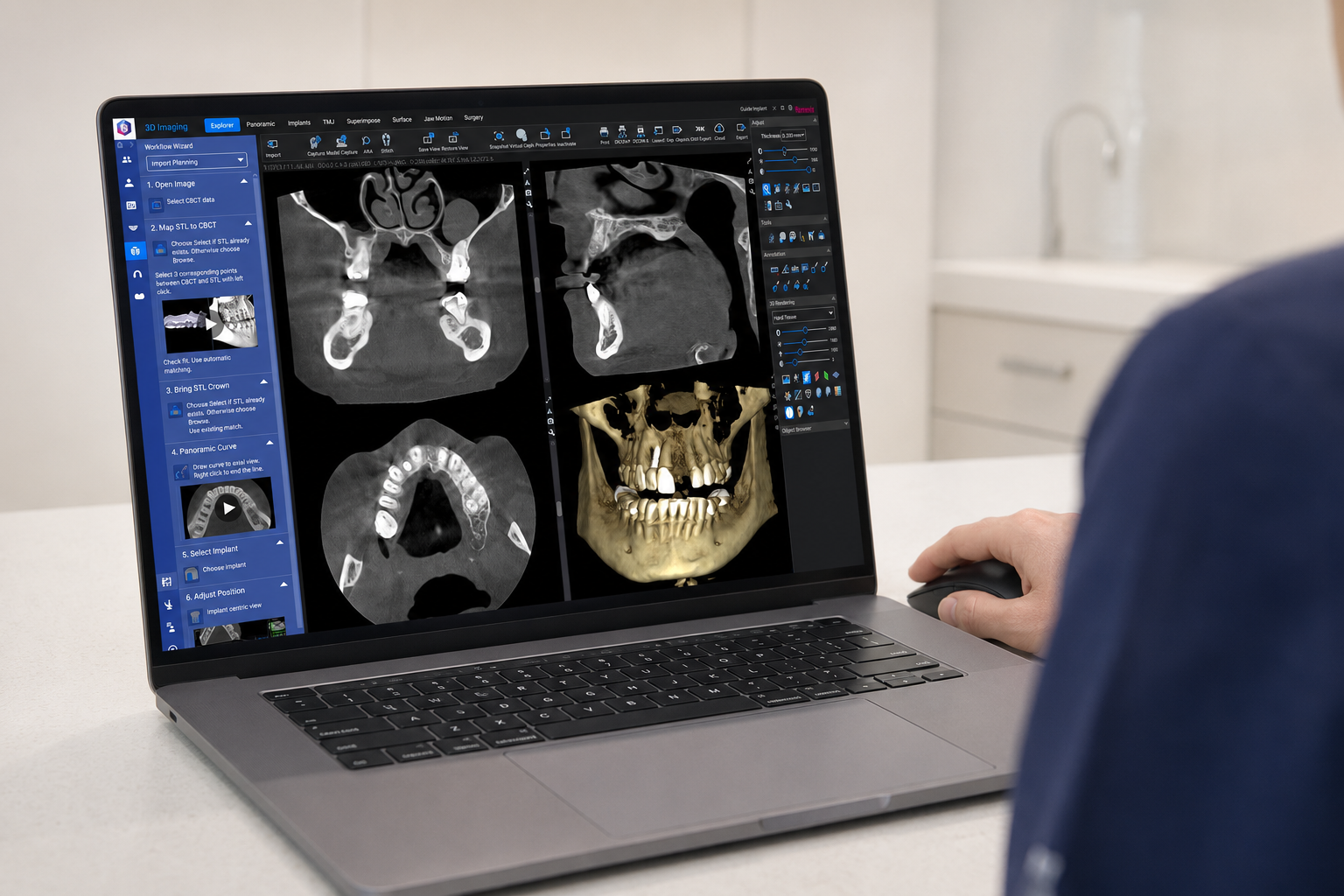
Planmeca Romexis install error or a crash on Windows 11 usually traces to one of two things: pending Windows updates during setup or a software version out of step with the operating system. This guide covers a clean install and what to do when Romexis crashes while opening an image.
TL;DR
A warning during install often means Windows has updates waiting, so finish them and reinstall.
Run the installer as administrator and choose Custom Installation for control over components.
When Romexis crashes, opening an image that other viewers open fine, the build or its drivers are the problem.
Confirm you run the Romexis version meant for your Windows release before chasing anything deeper.
Two Different Problems, One Article
Install failures and post-install crashes look unrelated, but they share a root: a mismatch between Romexis and the Windows environment around it. A setup that warns and stalls, and a client that opens then dies on the first image, both point back to updates and versions. Handling them together saves jumping between guides.
Install Error: Setup Warns Or Will Not Finish
Romexis can throw a warning before or during installation. Planmeca's own install notes say you can click past some of these, though the cleaner move is to deal with pending Windows updates first, since those block a clean setup.
Restart the computer and let any pending Windows updates install and settle.
Open the Romexis folder in the installer and run Setup.exe as administrator.
If a warning appears before install, restart and try again rather than clicking straight past it.
Accept the license terms and choose Custom Installation when offered.
On a server, leave the server components at their default settings.
On a client, uncheck Server Components so it installs as a client only.
If the clinic uses an Emerald scanner, check the PlanCAD option on every client install. The full sequence is laid out on the Planmeca tech wiki, and a server install can take twenty to thirty minutes, so a stall is not always a failure. Give it time before you cancel.
Crash Error: Romexis Closes When Opening An Image On Windows 11
This one is more specific. Romexis opens, but it crashes the moment a clinician tries to view a particular image or volume. The diagnostic trick is to open that same image somewhere else.
Open the file in another DICOM viewer. If it opens cleanly there, the image is fine, and the fault is inside Romexis, its version, or its drivers. That single test, documented in a real Windows 11 support case, separates a corrupt file from a software problem in about a minute.
Restart Romexis and try the image again, since a stale session clears some crashes.
Open the same image in another DICOM viewer to confirm that the file itself is good.
Confirm you run the Romexis version intended for your hardware and Windows release.
Reinstall the Romexis client if the crash repeats on good files.
A clean Windows 11 install with only system updates applied can still hit this, as one documented support case showed, where the images played fine in another viewer, and the fix came down to the Romexis build. Match the version to your setup before assuming the file is bad.
Make The Next Install Smoother
A few habits cut down on install-day trouble across a clinic's computers. Set them once, and the next workstation goes in faster.
Run all Windows updates and reboot before you start the Romexis installer.
Keep the installer for your current Romexis version where the team can reach it.
Match the Romexis version to the Windows release on each machine, especially on newer Windows 11 builds.
An imaging station stuck mid-install holds up the whole digital workflow, from scanning through to the dental treatment plan the dentist walks the patient through. The hardware feeding Romexis deserves the same care, and Dental Reviewed covers the CBCT scanning and dental equipment behind a working operatory in separate guides.
Bottom Line
Clear Windows updates before you install, run Setup.exe as administrator, and choose Custom Installation so you control what goes on a server versus a client. When Romexis crashes on an image, open that file in another viewer to prove the file is fine, then match the Romexis version to your Windows release and reinstall the client. Your Planmeca dealer can confirm the right build for your setup.
Frequently Asked Questions
Why Does The Romexis Installer Warn Me Before Installing?
Windows usually has updates waiting that would stop a clean install. Restart the computer, let the updates finish, then run Setup.exe as administrator. Planmeca notes that you can click past some warnings, but clearing updates first avoids a broken setup.
Is It Normal For A Romexis Server Install To Take So Long?
Yes. A server install can run twenty to thirty minutes, so a long pause is not always a failure. Let it finish before canceling. If it truly hangs well past that, restart and run the installer again as administrator.
Romexis Crashes When I Open One Image, Is The File Corrupt?
Test it. Open the same image in another DICOM viewer. If it opens fine there, the file is good, and the fault is inside Romexis, usually a version or driver mismatch. Match the Romexis build to your Windows release and reinstall the client.
Do I Need Windows 11 Pro To Run Romexis?
Check the system requirements for your Romexis version on Planmeca's downloads page, since supported editions change by release. The safest path is to confirm the requirements before installing, then run the version Planmeca lists for your Windows edition.