Romexis Client Cannot Connect To The Server: How to Fix It
Planmeca Romexis client that cannot connect to the server usually loses track of the server's IP address overnight. The fix starts with one question: Did anything on the network...
Written by Agnes Markovic
Read time: 5 min read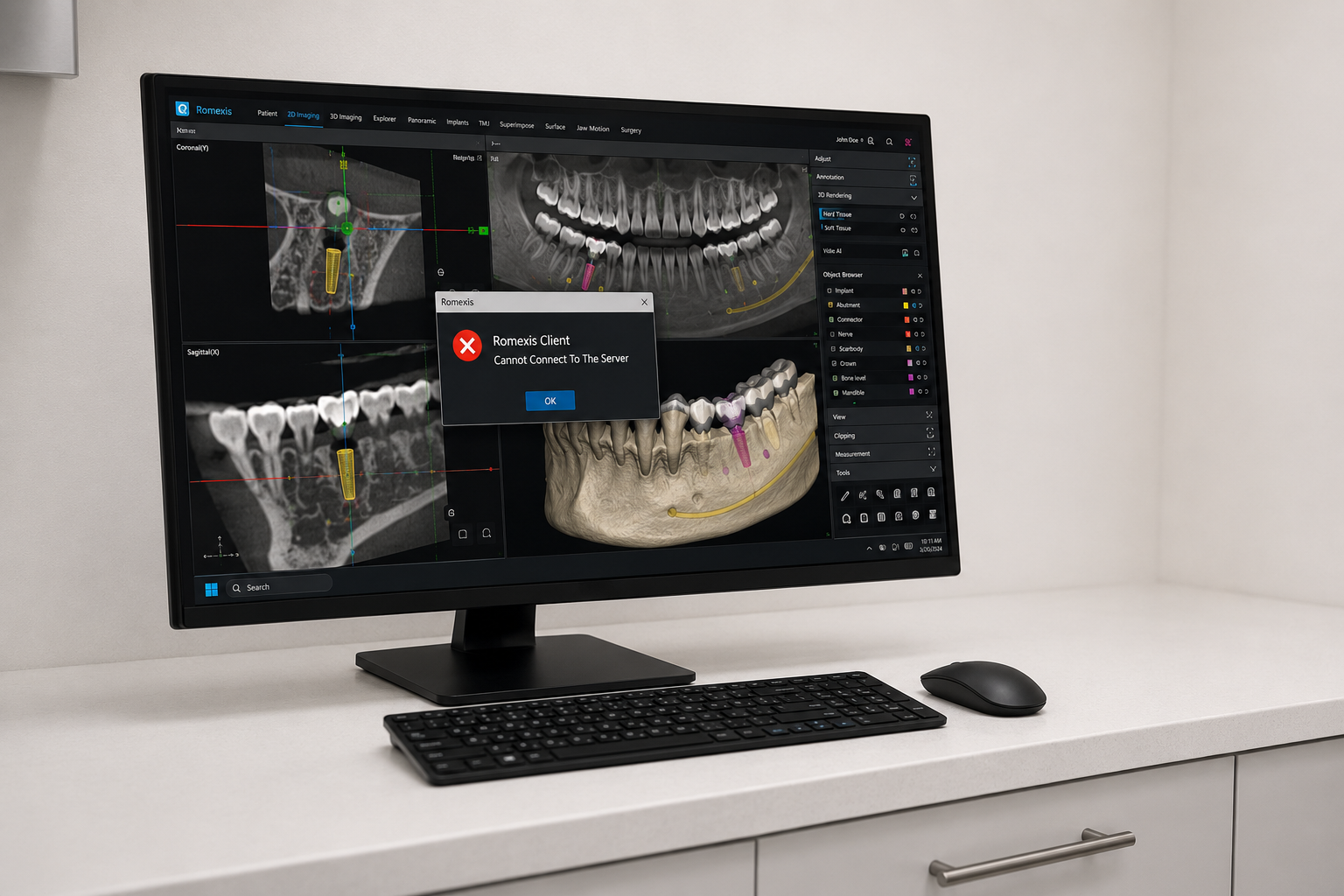
Planmeca Romexis client that cannot connect to the server usually loses track of the server's IP address overnight. The fix starts with one question: Did anything on the network change since the software last worked? This guide covers how to check, what to read, and how to stop it from recurring.
TL;DR
Most connection failures come from a server IP that has changed, so give the server a fixed IP.
Confirm the server is powered on and reachable before touching any client settings.
Read the Romexis Server log, which records the actual reason the connection dropped.
If only one workstation fails, the fault is local, not on the server.
What This Error Looks Like
The client opens, then stalls when it tries to reach the database. Sometimes it hangs on a connecting screen, sometimes it shows a message that it cannot reach the server. Either way, no patient images load, because every record lives on the server, not the workstation.
Picture a Monday morning. The front desk boots up, Planemca Romexis will not pull any patients, and the only thing that changed over the weekend was a router reboot that handed the server a new address. That single change breaks every client at once, which is the tell that this is a server-side or network problem rather than a broken install.
Start By Narrowing Down The Cause
Two checks decide where the problem sits. Run them before you change a setting, since guessing wastes the clinic's morning.
One workstation fails, the rest work: the problem is on that machine, its network cable, or its client config.
Every workstation fails at once: the problem is the server, its address, or the network between them.
A clinic with five operatories that all go dark together is almost never dealing with five broken clients. The shared piece, the server or the network, is where to look.
Fix The Server And Its Address
When every client fails, work the server first. The goal is a server that is on, reachable, and sitting at an address the clients expect.
Confirm the server computer is powered on and the Romexis Server service is running.
Find the server's current IP address on the server itself.
Check that the client's point to that exact address.
Set the server to a fixed, static IP so a router reboot cannot reassign it.
Restart the clients and confirm the patient load.
A fixed IP is the single change that prevents most repeats, and it is the same advice clinic IT integrators give on the Open Dental forum when Romexis loses its server. The server log lives on the server and reads much like a web server log, so it tells you why a connection failed if the address checks out and clients still cannot reach it.
Fix A Single Workstation
When one machine fails, and the others are fine, the server is innocent. Work the local connection on that one computer.
Check the network cable and the port, then confirm the machine is on the clinic network.
Confirm the client config points to the correct server IP, the same one the working machines use.
Restart the client, then the computer, to clear a stale session.
Confirm that a firewall or security update on that machine is not blocking Romexis.
Keep The Connection Stable
A few habits stop this from becoming a recurring Monday problem. None of them needs a technician once they are set.
Give the Romexis server a static IP and document it where the team can find it.
Note the server address inside the clinic's setup notes, so a new workstation is easy to point to correctly.
After any network or router change, open Romexis on one client to confirm it still connects.
A client who will not connect freezes the whole imaging workflow, from the first scan to the dental treatment plan the dentist presents. The images that flow into Romexis come from devices the clinic relies on daily, and Dental Reviewed covers the intraoral scanners and CBCT scanning behind that data in separate guides.
Bottom Line
Check whether one client fails or all of them. All of them point at the server, so confirm it is on and give it a static IP that a router cannot change. One client points at that machine, so check its cable, its client settings, and its firewall. When the address is right, and clients still cannot connect, the server log holds the reason, and your Planmeca dealer can read it with you.
Frequently Asked Questions
Why Did All My Romexis Clients Stop Connecting At Once?
The server is off, or its IP address has changed, often after a router or power event over the weekend. Confirm the server is running, find its current address, point the clients to it, and set a static IP so it cannot change again.
How Do I Give The Romexis Server A Fixed IP Address?
Set a static IP in the server's network settings, or reserve its address on the router. Then confirm every client's point to that address. A fixed IP stops a future reboot from handing the server a new address and breaking the clients.
Where Is The Romexis Server Log?
The log sits on the server computer and records connection activity, reading much like a web server log. It shows why a client could not connect when the address itself looks correct. Your Planmeca dealer can help locate and read it for your version.
What to Do if Only One Computer Doesn't Connect to Romexis?
The server is fine, so the fault is local. Check the network cable and port, confirm the client points to the right server IP, restart the machine, and make sure a firewall or recent update is not blocking Romexis on that one computer.