Patterson Dental Fuse Login: Access, Errors, and Fixes for Dental Teams
This guide walks dental teams through reaching the correct Patterson Dental Fuse login, fixing the errors that come up most often while using this software, and getting the most...
Written by Marcus Hale
Read time: 6 min read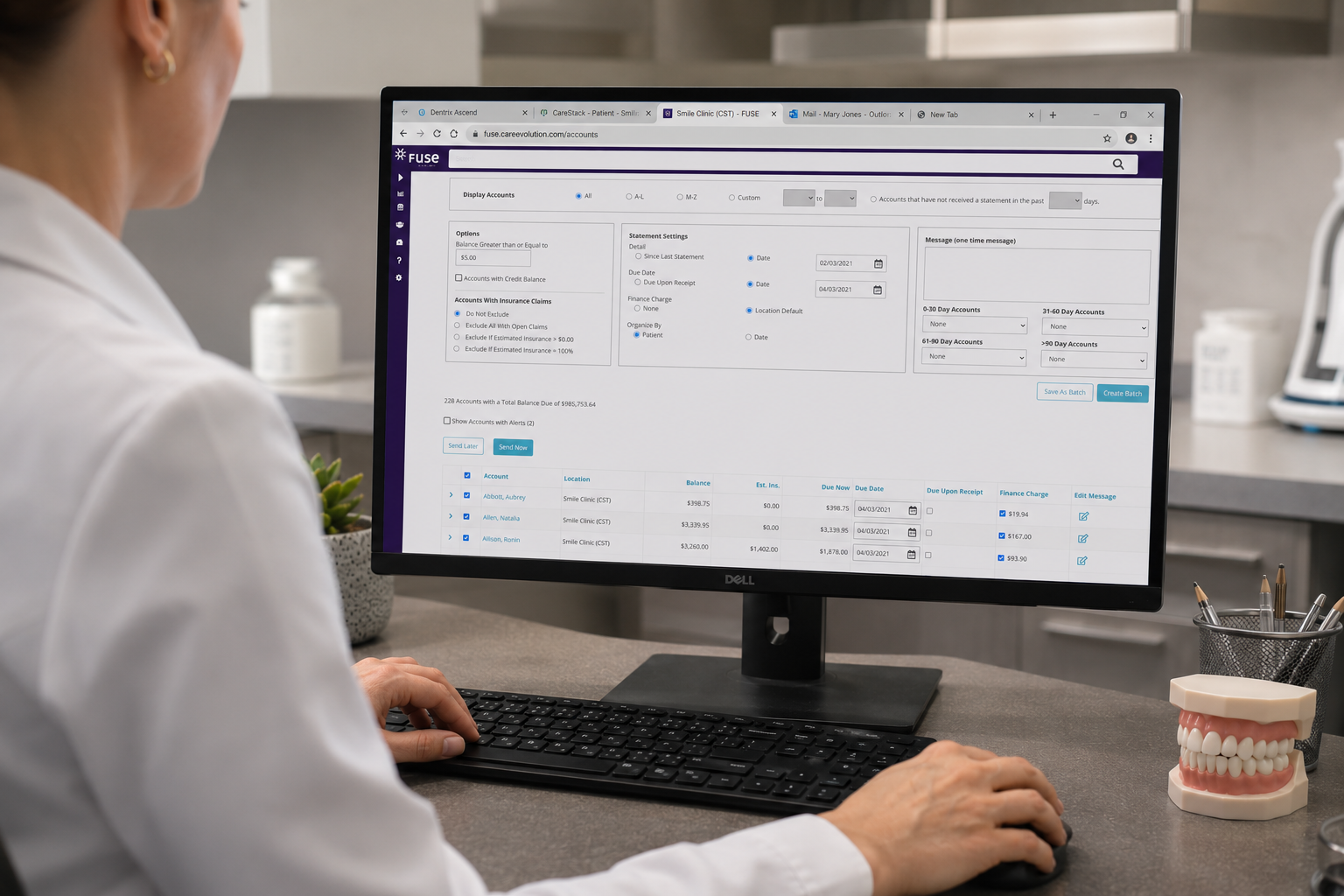
This guide walks dental teams through reaching the correct Patterson Dental Fuse login, fixing the errors that come up most often while using this software, and getting the most out of the platform once you are in. The login steps come first, since that is what most people open this page to find.
TL;DR
The login page is fuse.pattersondental.com, and your username is your email address.
Expect a two-factor code that arrives from Microsoft on behalf of PattersonB2C, so the spam folder is the first place to look when it goes missing.
A typo, a disabled cookie setting, or an outdated email on the account causes most failed logins.
Patterson support handles locked accounts and confirms outages through official channels.
How to Log In to Patterson Fuse Step by Step
Most readers want the Patterson fuse login steps before anything else. Here is the order. On a normal connection, you will be on your dashboard in under a minute.
Open a browser and go to fuse.pattersondental.com.
Enter your email address in the username field. Fuse dropped custom usernames a while back, so the old made-up username many of us used at setup no longer works.
Type your password.
Click Sign In.
Enter the two-factor code when the prompt appears. Depending on your setup, it comes by email or text.
Wait for the dashboard to load, then get to work.
Cookies have to be on, or the sign-in service stalls before it even checks your password. If you cannot remember your password, the reset link sits under the login form and emails recovery steps to the address on your account.
We’ve also published a walkthrough on getting started with MyITero, which follows the same login-and-support pattern if you set up that scanner, too.
What Is Patterson Dental Fuse?
Patterson Dental Fuse is a practice management platform that runs in a browser instead of on a server in the back office. The Patterson Dental Fuse login opens scheduling, patient records, billing, imaging, and reporting from whatever device you happen to be on.
What Is the Main Purpose of the Patterson Dental Fuse Software?
Fuse pulls the whole practice into one place. Scheduling, patient health records, billing, and live reporting all live in the cloud, so the office runs the same whether you open it from the front desk or your kitchen table on a Sunday night.
The older model put all of that on a single machine in the office, and when that machine died, the records went with it. Fuse also keeps one record per patient across every location, so the chart follows the patient instead of getting rebuilt at each site. The team's roundup of the best practice management software for dentists puts it next to the other options if you are still deciding.
Who Uses Fuse and the Provider Login
Dentists, office managers, front-desk staff, and assistants all live in Fuse during the day. The Fuse Patterson provider login and the Fuse Dental Patterson login open the same portal. What you see depends on the permissions tied to your role.
Your preferences save to your own login, so a provider gets the same layout signing in from the main office or a satellite clinic across town. Owners opening a second location can work through the team's new dental practice checklist and dental practice business plan guide while they plan staffing around a cloud system.
Common Fuse Patterson Login Errors and How to Fix Them
Login trouble almost always traces back to a short list of causes. Work down it in order, and most of it clears in a minute or two.
Incorrect Email or Password
Typos are behind most failed attempts at the Patterson Fuse Dental login. Check both fields, and make sure you are entering your email rather than an old username from setup.
Retype the password slowly and watch for the Caps Lock.
Check that the email matches the one on the account.
Use the reset link if you are not sure, since it emails the recovery steps.
Two-Factor Authentication Code Not Arriving
Fuse sends the code through a Microsoft identity layer, so the message shows up as Microsoft on behalf of PattersonB2C. A lot of mail filters drop it straight into spam.
Check spam and junk folders if nothing lands within a couple of minutes.
Request a fresh code, since the old one expires after about ten minutes.
Confirm that the email and phone number on the account are current.
Cookies Disabled or Browser Blocking Sign-In
The sign-in service uses cookies to confirm you are logged in. A browser set to block them stops the Fuse dashboard before it finishes loading.
Allow cookies for pattersondental.com in the browser settings.
Turn off strict tracking-prevention modes for this site.
Page Will Not Load or Loads Slowly
Cached data sometimes gets in the way of cloud applications. A stuck or crawling page usually clears once you reset the cache.
Clear the browser cache and cached files.
Use a current, supported browser version.
Check that the internet connection is steady.
Account Locked or Outdated Credentials
When Fuse switched to email usernames, some older accounts kept their original credentials and stopped working. An admin can update the email on the account and bring access back.
Ask the practice admin to update the email tied to the username.
Keep contact details current so it does not happen again.
Is Patterson Dental Fuse Down?
A sign-in failure is usually something local rather than the whole platform. Rule out your own browser and connection first, then check with Patterson before deciding that the Patterson Dental Fuse software login is actually down.
Try a different browser or device to see if the problem follows you.
Ask a colleague whether they can get in.
Contact Patterson support to confirm any reported outage.
How to Contact Patterson Dental Fuse Support
Patterson offers phone, text, email, and in-software help for the Fuse login process. Reach out through the official channels for account, billing, or access problems that the fixes above do not solve.
The current number and hours live on the official Patterson Dental site under the Repair and Support tab. In the Support page, you can choose your location by postal code and find the local representative who will be able to assist you with Patterson Dental Fuse software issues.
Key Features of Patterson Fuse
Fuse brings the main parts of a practice onto one screen. Here is what offices actually use and how the pieces fit together.
What Are the Benefits of Integrating Practice Management and Imaging Software?
Everything stays in one patient record. Fuse includes cloud 2D imaging and radiography, so notes, charts, treatment plans, documents, and images all show up on a single overview screen instead of three open programs. Staff stop hopping between systems, which is where a lot of small errors creep in, and a patient who moves between offices keeps one connected record with no repeat paperwork. A dental treatment plan reads more clearly when the imaging and the clinical notes sit right next to it.
How Do I Set Up Patient Scheduling Using This Specific Dental Software?
Scheduling runs off a shared calendar that every location can see. An admin sets up operatories, providers, and hours, and then staff books against that one database. The screens let the team filter and act on patient information from a single place, so a slot that opens up when one office has a cancellation can be filled by another office that is slammed. New users get in-software prompts that walk through booking without making them leave the screen.
Updating Fuse and Staying Current
People ask where to download the newest version. The answer depends on how cloud software works, which is different from the installed programs most of us grew up on.
Where Can I Download the Latest Update for the Dental Software Called Fuse?
There is nothing to download. Fuse updates itself in the browser, so the version you sign into is already the current one. Keep the browser up to date, clear the cache if a new feature looks off, and watch Patterson's release notes for what changed. The team's used dental equipment buying guide covers how the computers and tablets you buy affect how well cloud software runs on them.
Security and Data Protection at Login
Fuse guards practice and patient data starting at the sign-in screen. The login layer matters because a dental record carries health details, insurance numbers, and enough personal information to make it worth stealing.
Two-factor authentication puts a second check after the password, so a stolen password on its own does not open the account. That second code arrives by email or text through the Microsoft identity layer. Security updates keep the encryption current across the cloud, and an admin controls who holds access to what. The team's roundup of the best practice management software for dentists goes into how different vendors handle compliance.
Use a unique, strong password for the Fuse account.
Keep two-factor authentication on for every login.
Sign out on shared or public computers.
Have an admin remove access the day someone leaves.
Why Practices Move From Server-Based Software to the Cloud
Fuse runs in the cloud, and that changes how you reach your data compared with the installed systems that a lot of offices still run. It affects access, reliability, and the login itself.
A server-based system keeps everything on a machine in the office, so you can only reach it on-site, and a dead server can take the records with it. Fuse stores it all centrally, so the same Patterson Dental Fuse login works from any office or from home. A dentist can finish notes after dinner, and a second office can pull a schedule when another location closes early. Owners weighing the switch can plan around it with the team's used dental equipment buying guide and dental procurement best practices, which cover how hardware and supply choices shape how cloud software performs day to day.
Getting Your Team Onboarded to Fuse
A calm first week comes down to setting up logins and training before go-live. Patterson helps with onboarding, and a few steps keep the launch from turning into a scramble.
Every team member needs a valid email on file, because that email becomes the username for the Fuse login process. An admin sets roles and permissions, then walks people through their first sign-in and their two-factor setup. In-software guides appear for new features, so staff pick things up without stepping away from the work in front of them. Anyone who wants to keep up with current research can follow the team's list of top dental journals.
Collect a current email for every team member before go-live.
Set roles and permissions to match each person's job.
Run a short session on login and the daily workflow.
Keep Patterson's support details handy through the first week.
Understanding Roles and Access Levels
Not everyone needs the same access, so Fuse ties permissions to roles. Getting this right keeps records secure and keeps each person's screen from filling up with tools they never touch.
An admin assigns roles like provider, front-office, or manager, and each one opens the tools that the job needs. A dentist on the Patterson Dental Fuse provider login sees clinical charts and treatment notes, while a front-desk user works in scheduling and billing. A manager reviewing numbers across offices gets the consolidated reporting without switching accounts. The same Fuse login behaves differently depending on who signs in, which is what keeps a front-desk login out of the clinical record. Front-office staff can tie these workflows to patient growth with the guide on how to get more dental patients.
Match each role to the tools that the job actually uses.
Keep clinical record access to clinical staff.
Give managers reporting access across locations.
Review roles whenever someone changes jobs or leaves.
How Fuse Connects With Other Dental Software
Fuse works alongside the tools a practice already runs, and the connections keep data moving so nobody is typing the same thing twice.
It links with imaging software, billing tools, and insurance verification, so a clinician sees images and claim status inside the same patient record. The insurance features can add real-time eligibility, electronic attachments, and remittance advice, and the marketing add-ons handle patient communication and recalls. The front office and the clinical team end up working from one shared view.
Imaging and radiography sit inside the patient record.
eClaims and ePrescriptions run from the same system.
Insurance and marketing add-ons extend the core platform.
This also cuts down on login fatigue, since staff reach imaging, claims, and scheduling through one Fuse session instead of three programs with three passwords. Fewer logins mean fewer typos and fewer lockouts on a busy morning.
Fuse Compared With Other Patterson Software
Patterson sells more than one practice management product, so the logins get mixed up. A quick comparison sorts out which platform a sign-in belongs to, and which one your office is actually running.
Feature | Patterson Fuse | Eaglesoft |
Deployment | Cloud-based | Installed on an office server |
Login method | Browser at fuse.pattersondental.com | Desktop application |
Where can you sign in | Any device with internet | On-site workstations |
Username | Email address | Local account |
Updates | Automatic in the browser | Manual installs |
Multi-location data | One shared database | Tied to local servers |
Best fit | Practices want access from anywhere | Offices settled on on-premise hardware |
The team's best practice management software guide lines up the cloud and server options side by side.
Logging In From Home or Between Offices
Cloud access is a big part of why offices pick Fuse, so remote login is worth its own note. The steps match the in-office ones, with a couple of extra habits around security.
Because Fuse runs in a browser, the fuse.pattersondental.com login works from a home computer, a laptop carried between offices, or a tablet. A dentist can read a chart before an early appointment, and a manager can check a schedule from another site. Use a device you trust and a private connection rather than the coffee-shop Wi-Fi, keep two-factor on, and sign out when you are done.
Use a private, trusted connection for remote sign-in.
Keep two-factor authentication on for off-site access.
Sign out fully on a shared or personal device.
Bookmark the login page on each device you use.
Quick Troubleshooting Checklist
Keep this by the front desk. It clears the large majority of fuse patterson login problems, fastest fix first.
Confirm the address reads fuse.pattersondental.com exactly.
Retype the email and password, watching the Caps Lock.
Request a fresh two-factor code and check spam.
Enable cookies and clear the browser cache.
Try a different browser or device.
Ask an admin to confirm the account email is current.
Contact Patterson support if it still will not budge.
Bottom Line
The fuse patterson dental login lives at fuse.pattersondental.com, runs on your email address with a two-factor code, and needs cookies to be enabled. A password reset, a cache clear, or an admin updating the account email handles most of what goes wrong. For anything past that, Patterson support is the place to go, and there are more practice resources on the Dental Reviewed blog.
Frequently Asked Questions
What is the Fuse Patterson login URL?
The address is fuse.pattersondental.com. Open it in any current browser and sign in with the email address on your account and your password. Bookmark it so you are not retyping the address and risking a lookalike site.
Why is my Patterson Fuse login not working?
Usually, it's a typo, a blocked cookie setting, an outdated username, or a two-factor code that never arrived. Retype your details, enable cookies, request a fresh code, and have your admin confirm the account email is current.
How do I reset my Patterson Dental Fuse login password?
Use the reset link under the login form at fuse.pattersondental.com. The recovery steps go to the email on your account. Check spam if it does not show up, since the message comes from Microsoft on behalf of PattersonB2C.
Is there a Patterson Dental Fuse customer service number?
Patterson offers phone, text, email, and in-software support. You can find the local representative's number on the official Patterson Dental website, under the Repair and Support tab. There, you will need to enter your postal code, and it will show you the closest representative available, together with their phone number. For general questions or if the local representative is not available, you can contact Patterson Dental by calling 1.866.449.7282.
How do I know if Patterson Dental Fuse is down?
Try a different browser or device first, and ask a colleague whether they can get in. If it looks widespread, confirm the outage with Patterson support before assuming the platform is down for everyone.
Does Patterson Fuse require a download or update?
No. Fuse updates in the browser, so the version you sign into is the current one. Keep your browser up to date and clear the cache if a feature starts behaving oddly.
Can multiple locations use one fuse login?
Each person uses their own login, and the preferences are saved to it across locations. Multi-location practices share one database, so staff see the same schedule and records from any office.